Layout Presets
Layout presets let you save and switch between different panel arrangements, so the workspace fits your workflow. The preset bar sits at the top of the Visualization View, as shown below. The table describes each element from left to right:

| Element | Description |
|---|---|
| PRESETS | Built-in preset group. Built-in presets have a lock icon and can't be deleted |
| Tactile Monitor | A built-in preset. Each preset has its own tab like this |
| CUSTOM | Custom preset group. Your saved layouts show up here |
| + | Creates a new preset (Create Layout) |
| ⋯ | More actions: Import Layout... and Export All Presets |
| ⚙ | Layout Entry: switch the preset entry between Top Tab Bar (A) and Left Sidebar (B) |
Use Presets
Save a Preset
- Arrange panels in the desired layout.
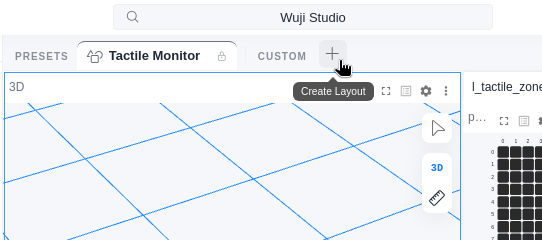
- Click the + button in the preset bar (Create Layout in the image below).
- Enter a name (up to 32 characters), choose a color and icon, then click Save. The new preset appears as a tab to the right of the CUSTOM label.
Delete is permanent and can't be undone. Before deleting an important layout, back it up with Export as JSON, then restore it anytime with Import Layout....
Manage Presets
Right-click a preset tab to open the action menu. Available actions depend on the preset type:
- Built-in presets: Duplicate (copies it as a custom preset) and Export as JSON. After you change the layout, Reset to Default also appears.
- Custom presets: Rename, Edit Color & Icon, Duplicate, Export as JSON, and Delete. After you change the layout, Save Changes and Revert to Saved also appear.
When you change a layout without saving, an amber dot appears on the preset tab to mark unsaved changes.
Import and Export
- Export: Right-click a preset → Export as JSON, or click the ⋯ menu → Export All Presets.
- Import: Click the ⋯ menu → Import Layout..., then select a
.jsonfile. Imported presets are added as custom presets.