Device Management
Connect View Overview
When you launch Wuji Studio, the Connect View appears as the main interface for managing devices.
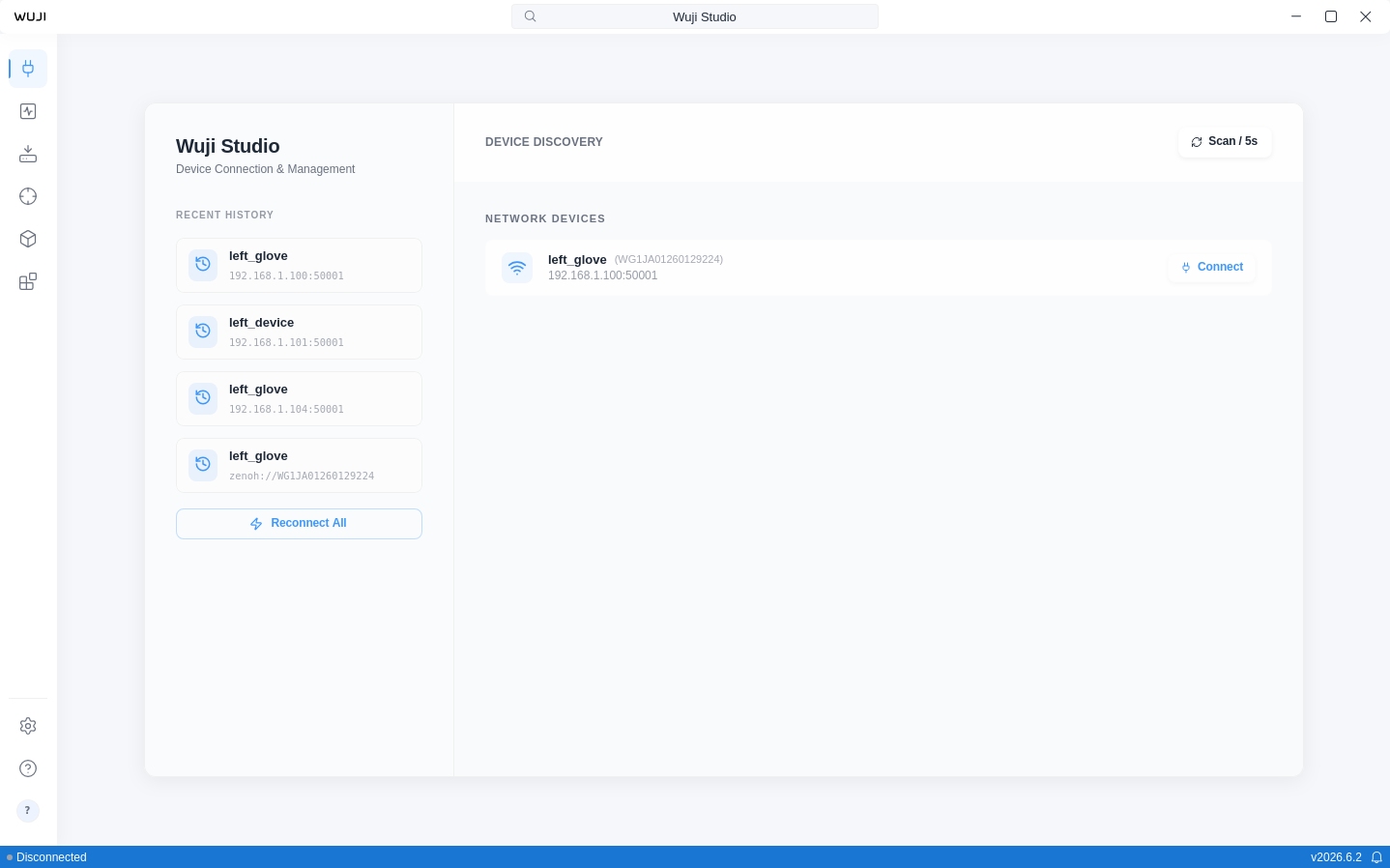
The Connect View consists of the following areas:
| Area | Description |
|---|---|
| Left sidebar | Connection history |
| Panel area header | Action buttons (such as Disconnect All), visible after connecting a device |
| Device list | Each device card contains an icon, device information, and action buttons. Connected and Connecting devices are displayed first:
|
| Bottom action area | Enter Visualization button appears after connecting a device |
Discover and Connect Devices
The app automatically scans for Wuji devices on the local network (refreshing every 5 seconds) and displays discovered devices as cards in the device list.
Click the Connect button on a device card to establish a connection. During connection, the app automatically detects left- or right-hand information from the device SN and generates a default name—no manual naming required.
On startup, Wuji Studio automatically restores devices connected in the previous session, with the status bar showing progress while restore is running.
Wuji Studio supports up to 2 simultaneously connected devices. When the limit is reached, attempting to connect another device shows a prompt asking you to disconnect an existing device first.
Shared Connections and the Read-Only Notice
When another host already holds the device through Wuji SDK, whether Studio can connect is decided by the Wuji SDK enable_bridge option (on by default). When the sharing host turns it off, Studio can't connect to that device—see Wuji SDK Device Connection.
Access after connecting through a shared device depends on the product:
- Wuji Hand 2: No read-only notice appears, and both read and write work. When multiple parties send control commands or change device parameters at the same time, the writes overwrite each other—coordinate who writes.
- Wuji Glove: The later party is read-only—a warning appears in the bottom-right corner saying the device is connected via Zenoh (read-only mode). You can subscribe to every data stream, but the sharing host rejects control commands and device parameter writes. To get write access, disconnect the device on the host that shares it, then reconnect in Studio.
Disconnect a Device
Disconnect a device in the following ways:
- Click the Disconnect button on the device card
- Click the device name in the center of the App bar → select Disconnect from the command palette
- Click Disconnect All in the Panel area header to disconnect all devices at once
Use the Device Command Palette
Click the device name in the center of the App bar to open the command palette. When multiple devices are connected, a device selection list appears first.
Commands available for connected devices:
| Command | Description |
|---|---|
| Reconnect | Disconnect and reconnect the device |
| Disconnect | Disconnect the current connection |
| Rename Device | Rename the device |
| Device Info | View detailed device information: device name, serial number, firmware version, address, transport type, and connection status |
Clicking a disconnected device opens a name input dialog, and the device connects automatically after entering a name.
View Connection History
The left sidebar stores up to 5 recent connection records.
Click Reconnect All to restore connections at once—this button becomes available when previously connected devices are discovered on the current network and are offline.
Delete individual records or clear all history.
Device Naming
Automatic Naming
When connecting a device for the first time, Wuji Studio detects left- or right-hand information from the device serial number and generates a default name automatically:
| Detected Type | Default Name |
|---|---|
| Left hand | left_glove |
| Right hand | right_glove |
| Glove (unknown side) | wuji_glove |
| Other device | wuji_device |
Rename a Device
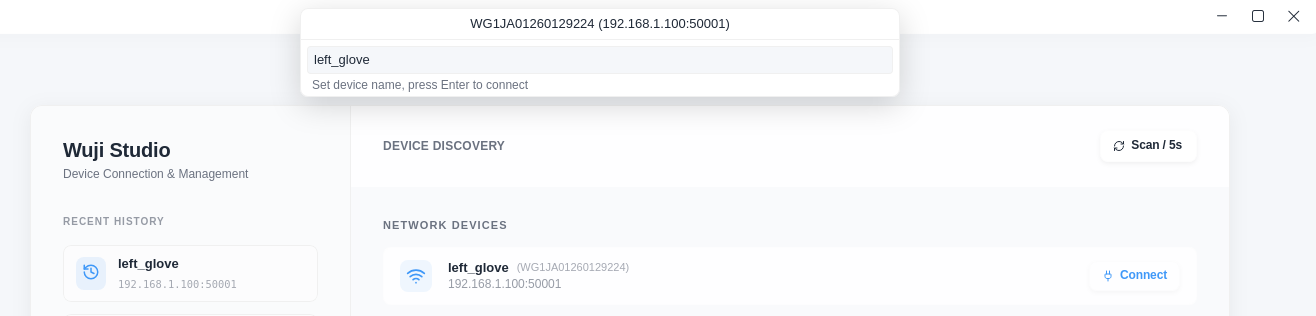
- Click the device name in the App bar to open the command palette.
- Select Rename Device.
- Enter a new name and confirm.
After renaming a connected device, the app automatically disconnects and reconnects with the new name. Topic paths update to reflect the new device name (for example, /left_glove/sensor/tactile becomes /my_device/sensor/tactile).
Naming Rules
Device names follow ROS naming conventions:
- Must start with a letter (a–z, A–Z)
- Only letters, digits (0–9), and underscores (
_) are allowed - Maximum 50 characters