Basic Settings
User Profile
The user avatar at the very bottom of the Activity bar opens the Studio user profile menu. Per-user data such as device calibration URDFs and tactile contact models is isolated by profile, so switching users doesn't affect other profiles.
Studio ships with a built-in Default profile that's there on first launch and can't be renamed or deleted. The Default profile doesn't save device calibration or tactile model data—create and switch to your own profile before you save that data.
Click the avatar → Create profile at the bottom of the menu → enter a name (description optional), and you'll be switched to the new user automatically.
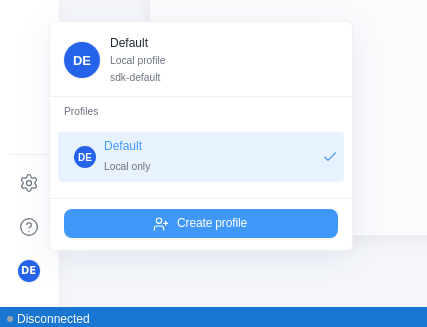
Manage Profiles
Click the avatar again to list all profiles in the menu:
- Switch: Click a profile row. The active profile shows a check mark, and Studio reloads calibration data for the selected profile
- Rename: Hover over a profile row and click the pencil icon
- Delete: Hover over a profile row, click the trash icon, and confirm. Deleting a profile keeps its saved data files on disk
Export and Import Data
Pack a whole profile's data into a single .zip file to move it to another computer or to back up your calibration results. Click the user avatar to find both entries under User data in the menu.
Export Data…: Pick where to save, and Studio writes the current profile's data into a .zip—the hand models from device calibration, the tactile contact model, the tactile parameters, and the most recent complete tactile capture run. After the export finishes, select Show in folder to locate the file in your file manager.
Import Data…: Pick a .zip file, and Studio shows what's inside before anything is written: which profile the data belongs to, which devices it covers, and which components it contains. Confirm, and the data is restored to the profile that owns it, replacing that profile's existing data. Studio creates the owner profile if it doesn't exist on this computer.
Importing doesn't change your current profile, and it doesn't require you to switch to a specific one first. When the data belongs to another profile, select Switch to profile name after the import to move over in one step.
The two kinds of calibration data in the archive are keyed differently. Hand models are stored per profile and hand, so gloves on the same hand share one result. Tactile contact models and captured runs are stored per profile and glove serial number, so after the import they stay bound to the gloves listed in the preview — swapping in another glove on the same hand needs a fresh tactile calibration.
- Export requires a named profile as the current one—the
Defaultprofile can't export - An archive owned by the
Defaultprofile can't be imported - Export and import are available in the desktop app only
Personalization
Click the Settings icon at the bottom of the Activity bar to open the Settings dialog. It has two tabs, General and About. Settings apply globally and don't change when you switch user profiles.
General tab:
| Setting | Description |
|---|---|
| Color scheme | Dark, Light, or Follow System theme |
| Display timestamps in | Timezone for displayed timestamps, defaults to the system timezone |
| Timestamp format | Raw seconds or time of day |
| Message rate (Hz) | Refresh rate for panel data, 1–60 Hz, default 60 |
| Step size (ms) | Playback step duration, default 100 ms |
| Language | Interface language, currently English only |
| ROS_PACKAGE_PATH | Search path for loading local ROS resources |
About tab: Shows the Wuji Studio version (with a copy button), lets you check for updates and install a specific version (see Updating Studio in Download and Installation), and links to the documentation.