Tactile Contact Calibration
Tactile contact calibration trains a contact-detection model specific to one user and one glove, so the tactile heatmap accurately tells contact from no contact. Complete it at least once per user-and-glove pair, and recalibrate after you switch users or gloves.
Switch to your own named profile before you start. The model is saved per user profile and glove serial number, and you can't start calibration under the Default profile. See Basic Settings > User Profile for how to create one.
Switching profiles during calibration stops the run and resets the flow—capture and training both start over. Stay on the same profile until calibration finishes.
Tactile contact calibration applies only to the Wuji Glove. It is independent of device calibration (pose calibration for fingertip pinch, four-finger bend, and similar gestures), and the two do not affect each other.
Calibration Home
Before opening calibration, connect the Wuji Glove on the Device Connection page. Click the Tactile Calibration icon on the Activity bar to enter the home page: the Devices sidebar lists connected gloves and their calibration status on the left. The right side shows the title, the flow summary, and the start button at center.
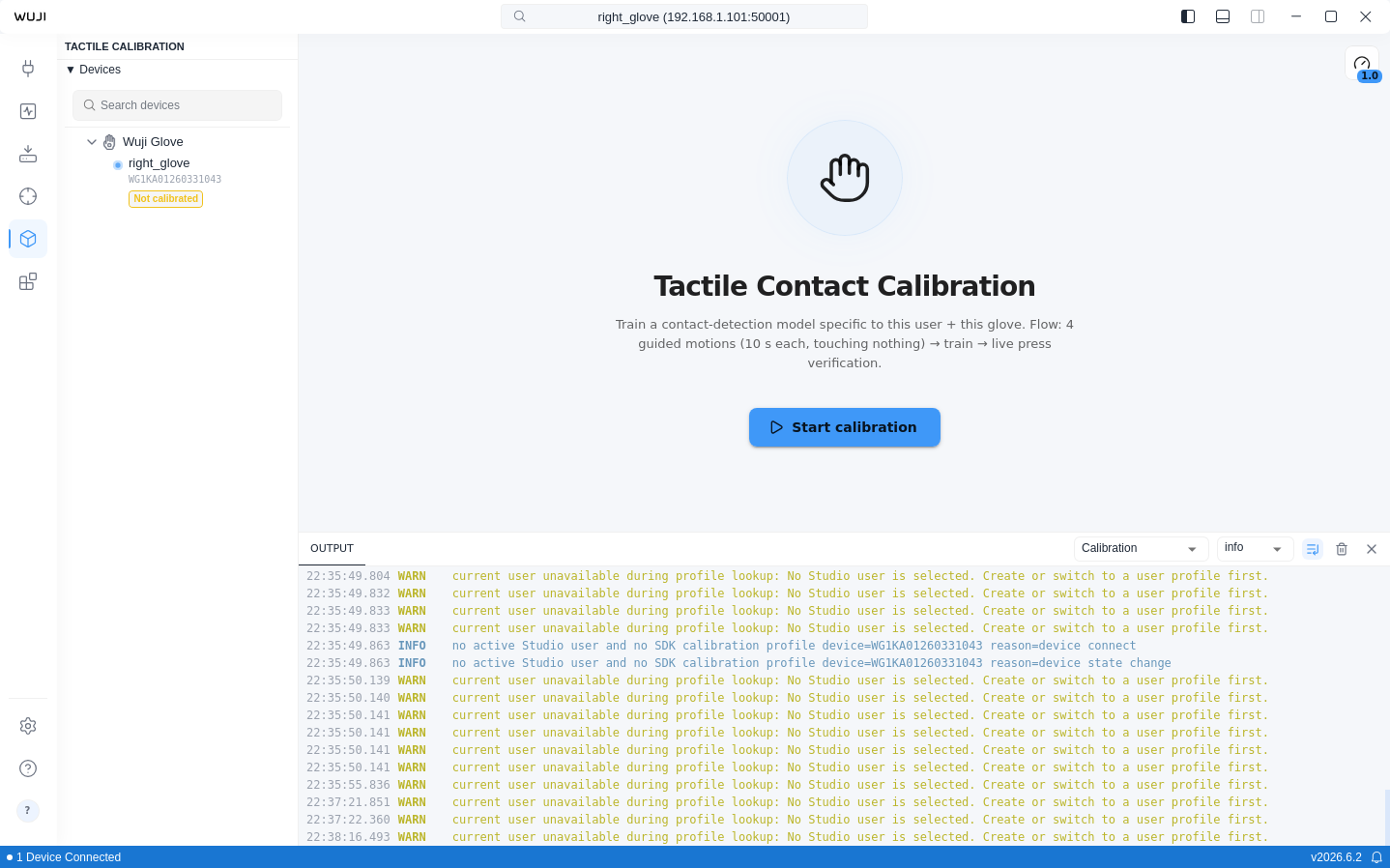
Select a glove in the sidebar and click Start calibration to enter the flow. A calibrated glove shows Re-calibrate, which runs the same flow.
The start button stays disabled in these cases:
- No glove connected: shows Connect a Wuji Glove first
- A glove is connected but not selected: shows Select a Wuji Glove in the device tree on the left
- The background service is starting: shows sidecar starting…, which clears in a moment
Starting Calibration
Wear the glove and perform every motion touching nothing. This step builds the "no contact" baseline, so touching a desk, your fingers, or any object contaminates the data and makes contact detection inaccurate.
Calibration records 4 guided motions in order, each for 10 seconds. See Motion Reference below for each motion's illustration and tips.
Completing a Motion
Each motion follows the same steps:
- Read the prompt and illustration for the current motion
- Click Start. A 10-second countdown begins—repeat the motion 3 times within these 10 seconds
- When recording ends, click Next motion to move on
To redo the current motion, click Re-record. Click Cancel anytime during recording to stop and return to the home page.
Motion Reference
| Step | Illustration | Motion | Operation guide |
|---|---|---|---|
| 1 | 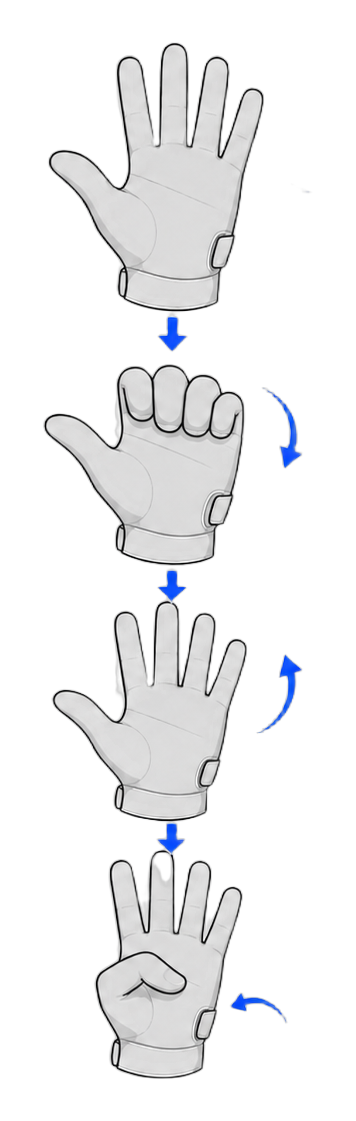 | Fold four fingers down, then thumb in | Keep the four fingers straight and fold them down ~90° at the base knuckles, then open again—repeat. On the last fold, tuck the thumb in across the palm |
| 2 | 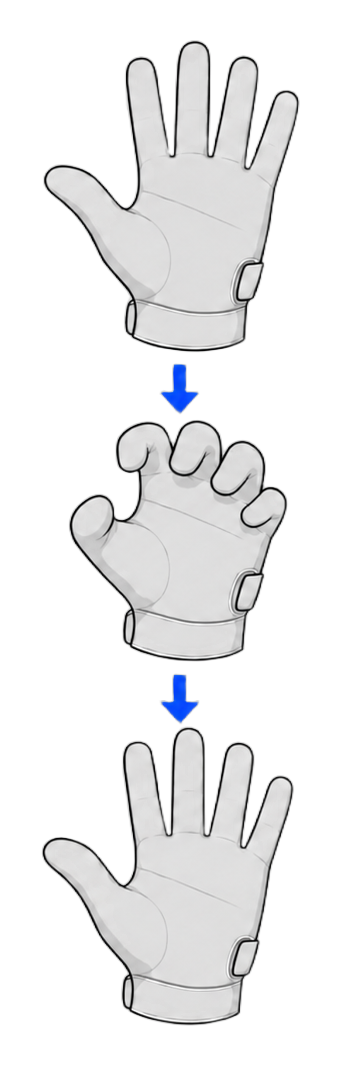 | Five-finger claw | Curl all five fingers, including the thumb, toward the palm into a claw, then open again—repeat |
| 3 | 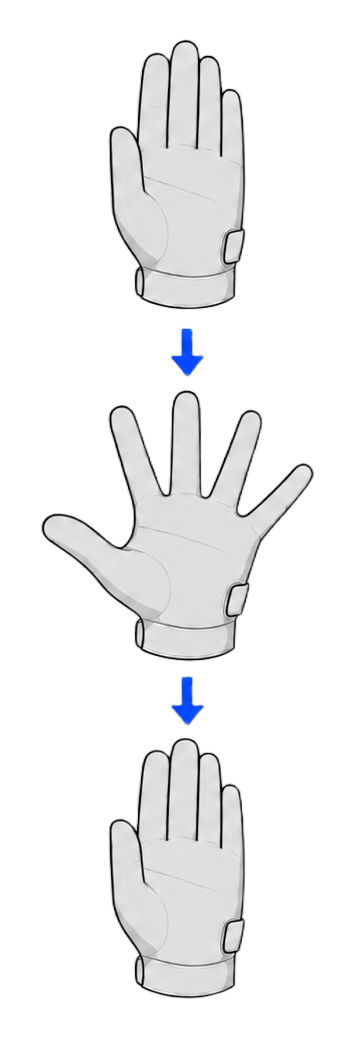 | Spread & close | Keep the fingers straight, spread them as wide as you can, then bring them back together—repeat |
| 4 | 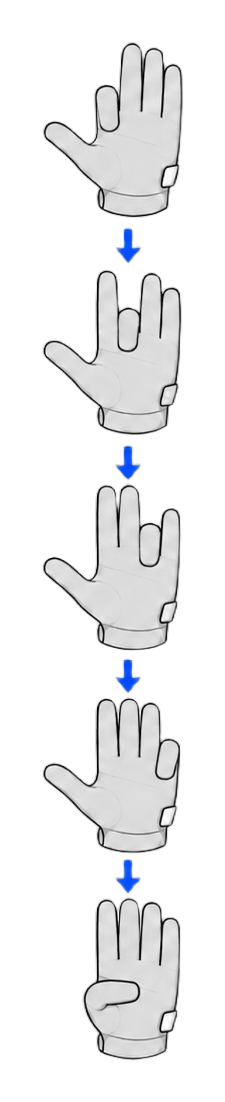 | Curl fingers one by one | Curl each finger down to the palm one at a time, from the index finger to the little finger |
Calibration Complete
After the fourth motion, training starts automatically and the screen shows Training… with progress. When training finishes, live verification begins: press different spots on the glove (fingertips, palm), and the matching areas light up red on the heatmap, with the prompt Press different spots on the glove (fingertips, palm) — matching areas should light up red.
The completion page offers three actions:
| Action | Effect |
|---|---|
| Done | Confirm the result and finish. The screen shows Calibration complete, and the model is saved for the current user and glove |
| Re-calibrate | Start over when the result is off |
| Back | Return to the home page |
The model saves automatically, binds to the current Studio user and glove SN, and loads the next time you subscribe to tactile data.
Calibration Output Location
Everything one calibration produces is archived in a single directory, per Studio user profile and per glove:
~/.wuji/sdk/users/<profile-id>/tactile/<glove-sn>/
├── model/              # Trained tactile contact model
└── calibration-data/   # Raw capture data, one subdirectory per calibration
model/ holds contact.safetensors (model weights) and contact.npz (reference data). The SDK loads the matching model automatically based on the active user and glove—no manual selection needed. The trained model powers the SDK's binary contact and residual streams—see the TactileBinary and TactileResidual data reference for how to subscribe. calibration-data/ keeps the raw capture from each calibration, one data file per guided motion, 4 per complete run.
Each user profile keeps its own copy, and switching users or gloves doesn't affect the others. To move a profile's calibration output to another computer, use Basic Settings > Export and Import Data.
When to Recalibrate
Recalibrate in these cases:
- You switch users or switch gloves
- Contact detection looks clearly off (a light touch doesn't light up, or no contact shows red)
- After repair or part replacement
To recalibrate: click Re-calibrate on the verification page, or return to the home page, select the glove, and click Start calibration (shown as Re-calibrate once calibrated).
What Contact Detection Means
Calibration produces a contact-detection model: the heatmap expresses whether contact is present, not a continuous pressure reading. During detection, the model predicts the no-contact pressure baseline for the current hand pose, and an area counts as contact only when the measured pressure rises clearly above that baseline. Neighborhood and consecutive-frame filtering suppress isolated false positives. Contact sensitivity tunes how far above the baseline counts as contact.
Adjust Contact Sensitivity
The Contact sensitivity control in the top-right corner sets how easily a press registers as contact in the heatmap:
| Item | Description |
|---|---|
| Range | 0.5×–3.0×, default 1.0× (Less is harder to trigger, More is easier) |
| Effect | A higher value registers lighter presses as contact |
| Scope | Saves per glove and applies immediately, no recalibration needed |
Troubleshooting
You may run into these during tactile calibration:
| Symptom | Cause | What to do |
|---|---|---|
| The home page shows sidecar starting… and the start button is disabled | The background calibration service isn't ready yet | Wait a few seconds. The button enables once the service is ready |
| Sidecar stopped appears and the run is aborted | The background service was interrupted | Reopen the home page and click Start calibration to retry |
| Recording or training fails with Operation failed. Check the device connection and try again. | The device connection dropped or data was interrupted | Check the glove connection and restart calibration |
| Calibration keeps failing | / | Restart Studio. If it persists, contact support@wuji.tech |