Troubleshooting
For glove connection and network configuration issues, see Wuji Glove Troubleshooting. For SDK-related issues, see Wuji SDK Troubleshooting.
Won't start / white screen or crash
- Confirm your OS meets requirements (Ubuntu 22+)
- Update GPU drivers to the latest version
- Install WebKitGTK:
sudo apt install libwebkit2gtk-4.1-0 - Delete the application data directory and retry:
# Back up first cp -r ~/.wuji/studio/data ~/.wuji/studio/data.backup.$(date +%Y%m%d%H%M%S) rm -rf ~/.wuji/studio/data - If it still won't start, check your system proxy. A proxy that intercepts WebView local resource loading causes a blank screen. Launch with proxy environment variables temporarily cleared:
env -u http_proxy -u https_proxy -u all_proxy -u ftp_proxy -u no_proxy \
    -u HTTP_PROXY -u HTTPS_PROXY -u ALL_PROXY -u FTP_PROXY -u NO_PROXY \
    GSETTINGS_BACKEND=memory \
    wuji-studio
Panels show blank
- Confirm a device is connected and you're in the Visualization View
- Check if the panel is subscribed to the correct Topic
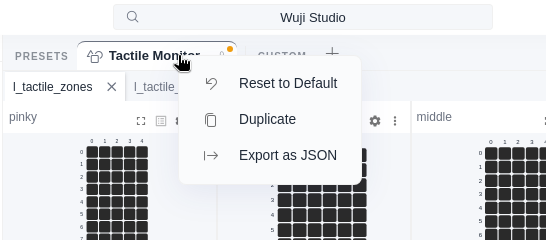
- Try resetting the panel layout (right-click a preset tab → Reset to Default)
Restore the default layout
To restore the default layout after changing it, right-click the current preset tab in the preset bar at the top (Tactile Monitor in the image below) and select Reset to Default. See Layout Presets for more preset operations.
Tactile data is all 0 or -1
Values of -1 mark invalid points, which is normal. If values stay at 0 even when you press the sensor surface:
- Confirm the
tactiledata stream is subscribed - Run calibration
- If still unchanged after calibration, inspect the sensor area for physical damage
Tactile data is inaccurate or shows abnormal values
- Make sure the sensor area is flat and not folded before wearing
- Keep fingers slightly bent and relaxed when connecting
- Check if calibration has been performed
- Values of -1 indicate invalid points, which is normal behavior
Tactile data flickering or jumping
- Check if the glove is worn too loosely, causing unstable sensor contact
- Avoid applying excessive pressure that may saturate the sensors
- Verify that the glove wiring is not damaged
Tactile matrix heatmap shows all black
- Confirm you're subscribed to the correct Topic (tactile or tactile_zones)
- Check if the Matrix panel data range is set correctly (default 0.0~1.0)
- Press the glove surface lightly and observe if data changes
Tactile matrix heatmap is misaligned or sheared
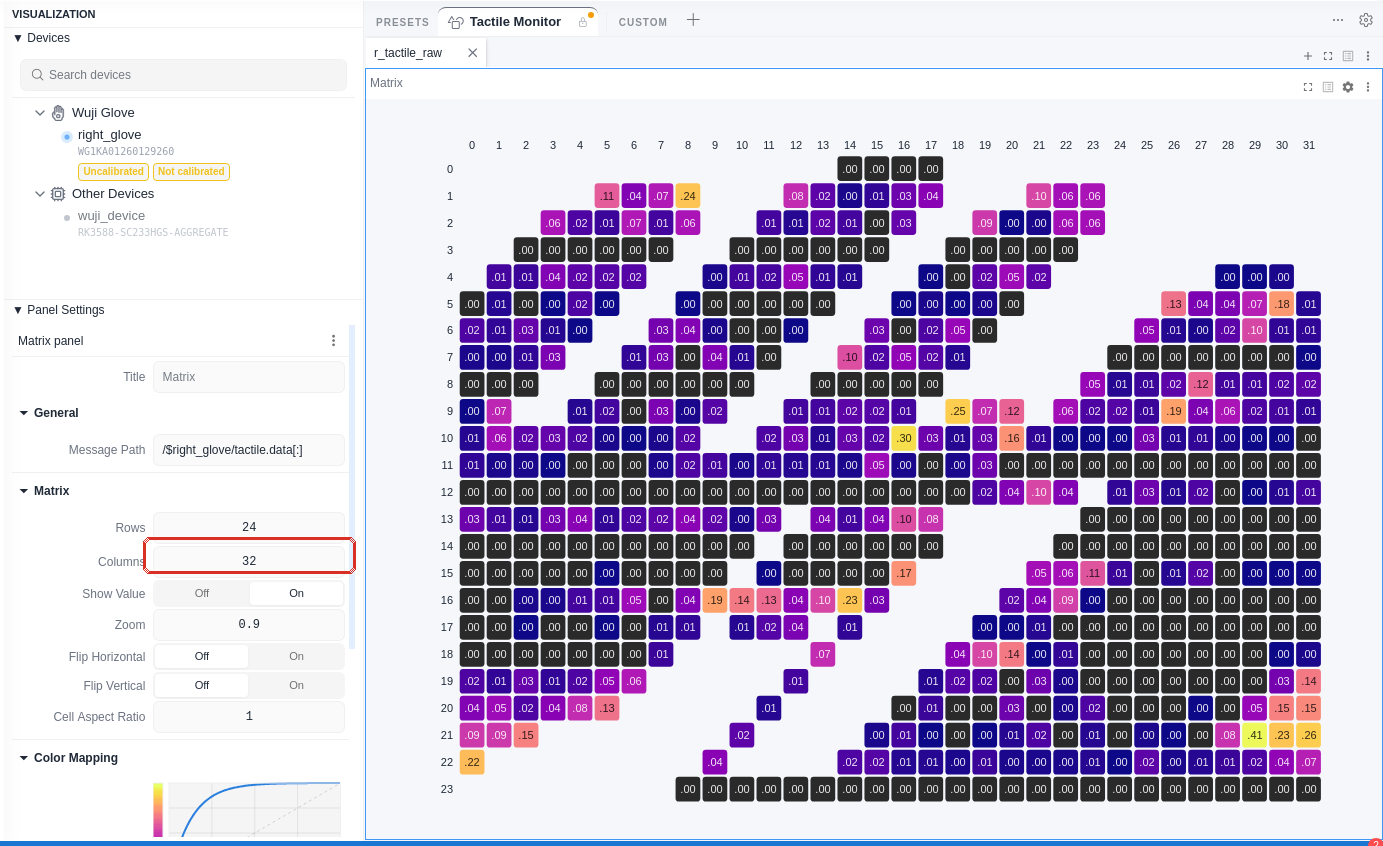
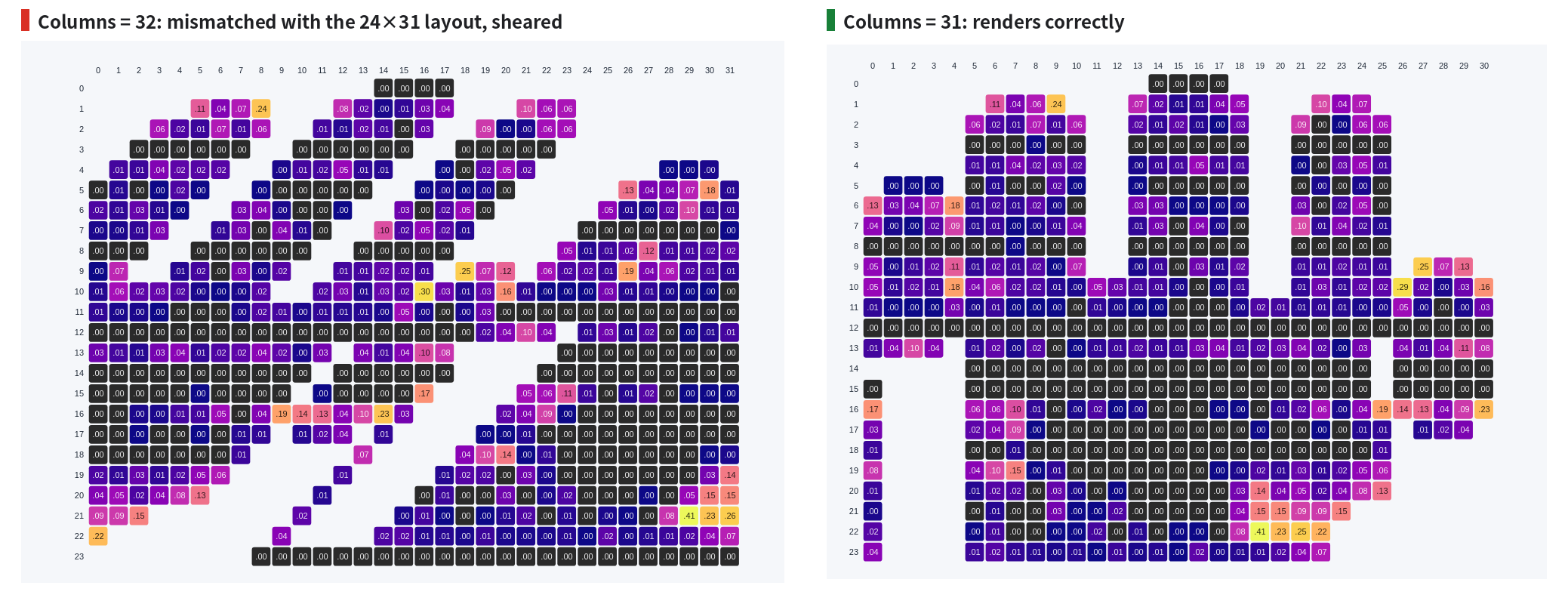
- Check that Columns in the Matrix panel settings is 31: the tactile matrix is 24×31, and a mismatched column count shifts each row by one cell, shearing the whole heatmap
- Set Columns back to 31 in the Sidebar's Panel settings, or right-click the preset tab and select Reset to Default
EMF positioning is inaccurate or drifting
- Check
confidencevalues—below 0.8 indicates significant environmental interference - Move away from metal objects and electronic devices
- Keep the hand within 30 cm of the transmitter coil
- Ensure no large metal objects block the path between the transmitter coil and hand
- Perform EMF calibration
EMF confidence is consistently low
- Check if the hand is too far from the transmitter coil (recommended within 30 cm)
- Confirm the transmitter coil power supply is normal
- Inspect receiver coils for physical damage
IMU orientation data is drifting
- Wait 2–3 seconds after power-on for the IMU to stabilize
- Avoid using near strong magnetic fields (e.g., near large motors)
- Wear the glove securely to avoid looseness
Firmware upgrade failed
- Ensure stable power supply — do not disconnect during upgrade
- Ensure stable network connection — use wired connection
- The glove has a built-in rollback mechanism that automatically restores the previous version on failure
- Wait for the glove LED to indicate rollback completion, then retry
Encountering errors during upgrade
| Error Type | Description | Suggestion |
|---|---|---|
| Network Error | Cannot connect to firmware server | Check network connection |
| Server Error | Firmware server returned an error | Try again later |
| Config Error | Firmware server URL not configured | Contact administrator |
| Device Offline | Device disconnected during upgrade | Check cables and power supply |
Use local firmware for upgrade
In Step 2, click the Upload local file button to select a firmware file (.zip format). After upload, the app automatically parses and displays the firmware version, release date, and release notes.
Using unofficial firmware may cause device damage or performance issues and may void the warranty. Only use firmware files from trusted sources.
Get technical support
Contact support@wuji.tech with the following information:
- Device serial number (SN)
- Firmware version
- Wuji SDK / Wuji Studio version
- Operating system and version
- Steps to reproduce the issue