Firmware Upgrade
Click the Upgrade icon in the Activity bar to open the Firmware Upgrade View. Wuji Studio provides a step-by-step firmware upgrade wizard.
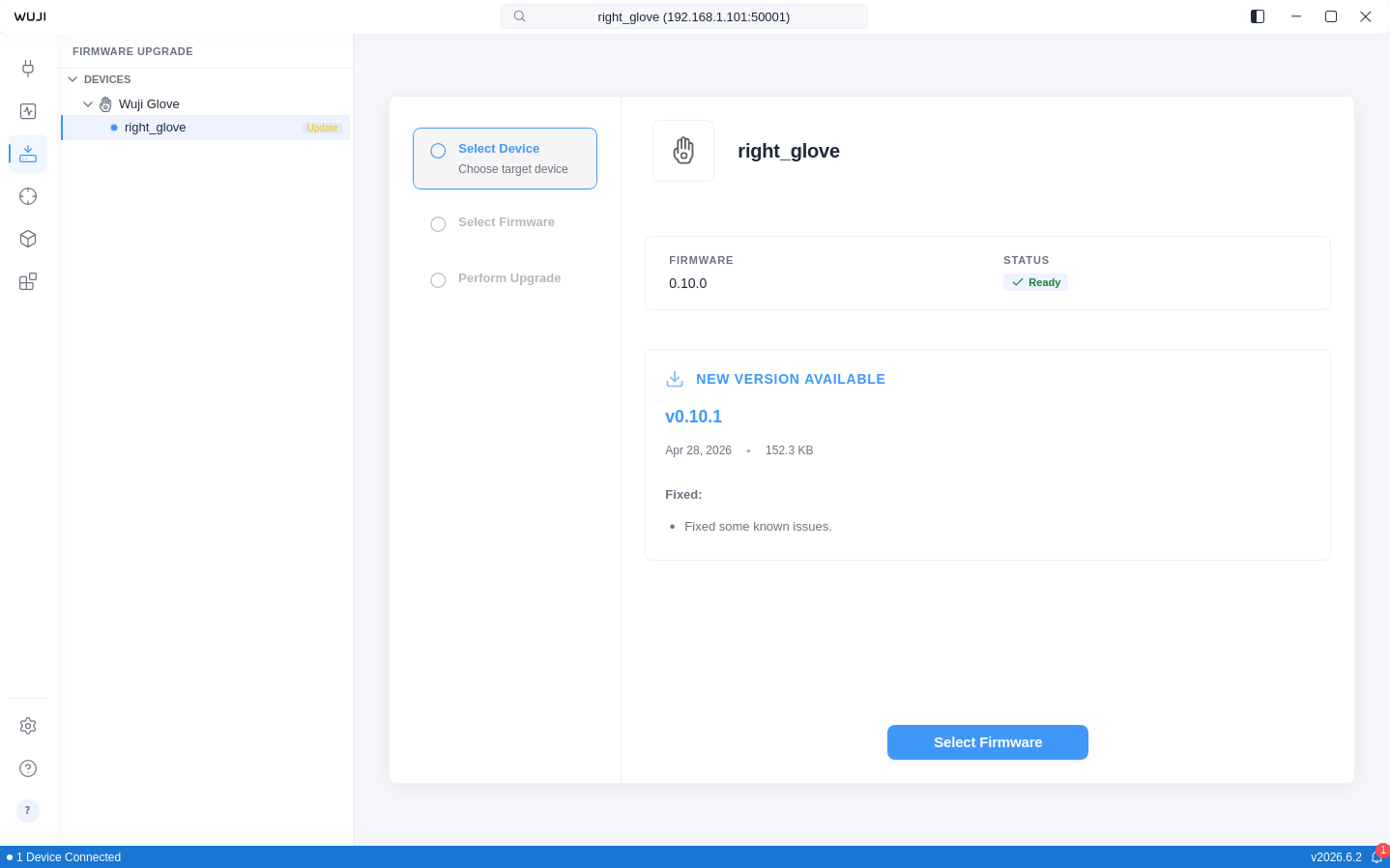
Upgrade Workflow
Step 1: Select Device
After entering the Upgrade View, the Sidebar lists all connected devices. The Sidebar groups devices by product type and lists unrecognized devices under Other Devices.
Upon selecting a target device:
- Displays the device's current firmware version
- Automatically checks for available updates
- Notifies you if the device is already on the latest version
Step 2: Select Firmware
The application automatically retrieves available firmware from the server, sorted by version (newest first). Each entry displays:
- Version number
- Release date
- Release notes
After selecting a target version, the app shows the cumulative changelog between the current and target versions, to help you understand all the feature updates you'll receive.
If the selected target version is lower than the current version (downgrade), a warning highlights lost features with strikethrough. Confirm the downgrade impact before proceeding.
Step 3: Upgrading
After confirming the upgrade, the progress bar shows real-time status:
- Preparing — Initializing the upgrade environment
- Receiving — Transferring the firmware to the device
- Verifying — Validating firmware integrity
- Do not close the application or disconnect the device during the upgrade. If you attempt to close the app, a confirmation dialog will warn that an upgrade is in progress. - If you encounter issues during the upgrade, refer to Troubleshooting.
Step 4: Result
- Success: Shows pre/post version comparison and verification result
- Failure: Shows error details and upgrade log, with a retry option. The firmware automatically rolls back to the previous version on upgrade failure