 Wuji Hand
 Wuji Glove
 Wuji Studio
 Wuji SDK
Overview
The Visualization View is the core workspace of Wuji Studio. After connecting a device, real-time data publishes through Topics. Use different panel types to view and analyze data.
Enter Visualization
After connecting a device on the Device Management page, an Enter Visualization button appears in the Bottom action area. Click it to switch to the Visualization View and start viewing real-time data. You can also click the Visualization icon in the Activity bar directly.
The default layout after entering looks like this:
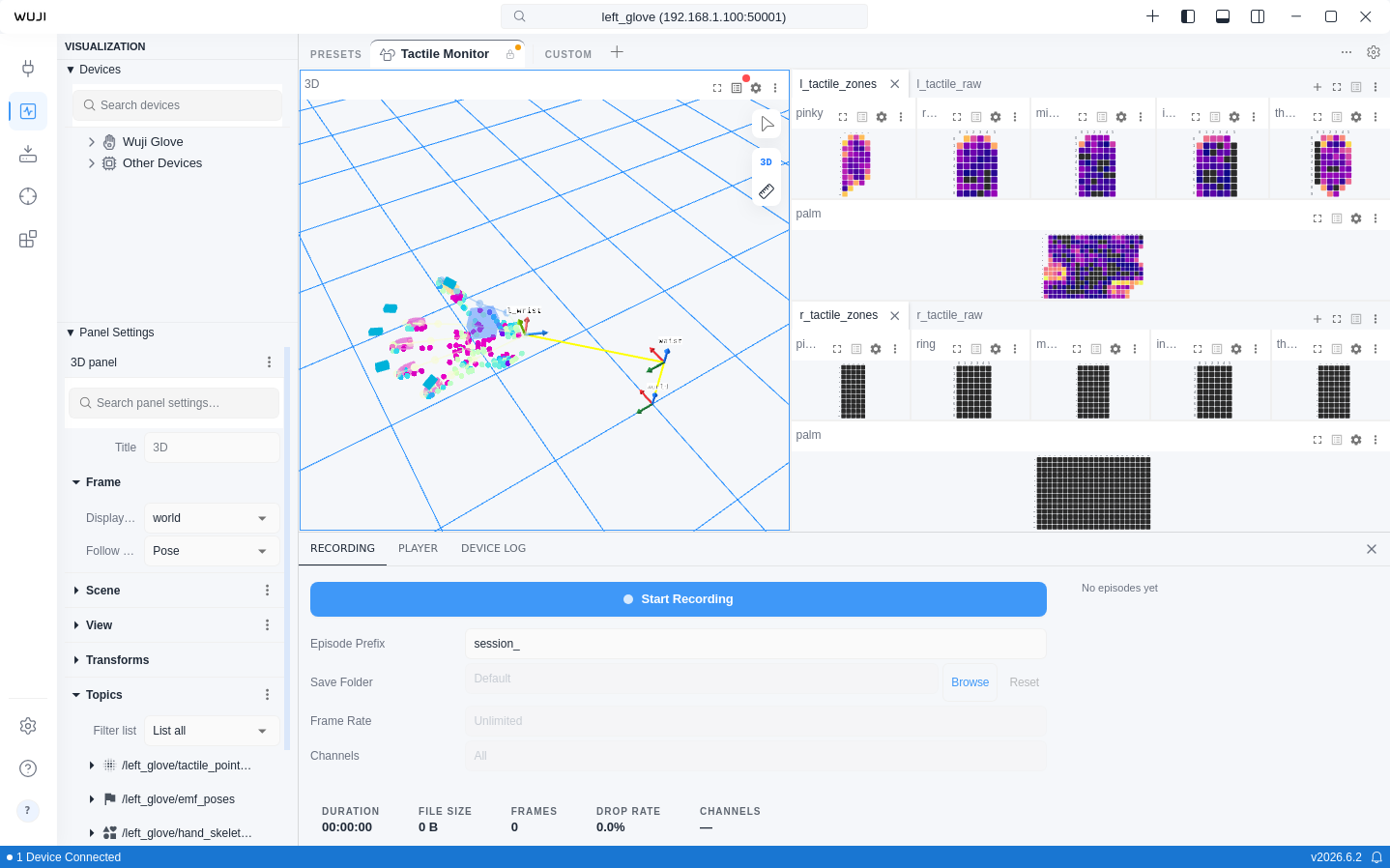
Visualization View Overview
The Visualization View consists of the following areas:
| Area | Description |
|---|---|
| Left Sidebar | The left sidebar contains 2 panels:
|
| Right Sidebar | The right sidebar contains 2 panels:
|
| Panel area | Data visualization workspace with free drag-and-drop and split-view layout:
|
| Bottom bar | Collapsed by default. Click the Show bottom bar icon on the right of the App bar to expand. Contains 3 tabs:
|
Topic Tree
The Topics panel in the Right Sidebar displays all available data Topics. Topics are organized in a tree structure separated by / namespaces. When expanded, schema fields are shown hierarchically (separated by .), with support for array and struct nesting. Click a Topic to view its details, or drag it into a panel to subscribe to data.
Layout Presets
Layout presets let you save and switch between different panel arrangements. The preset bar appears at the top of the Visualization View, as shown below.
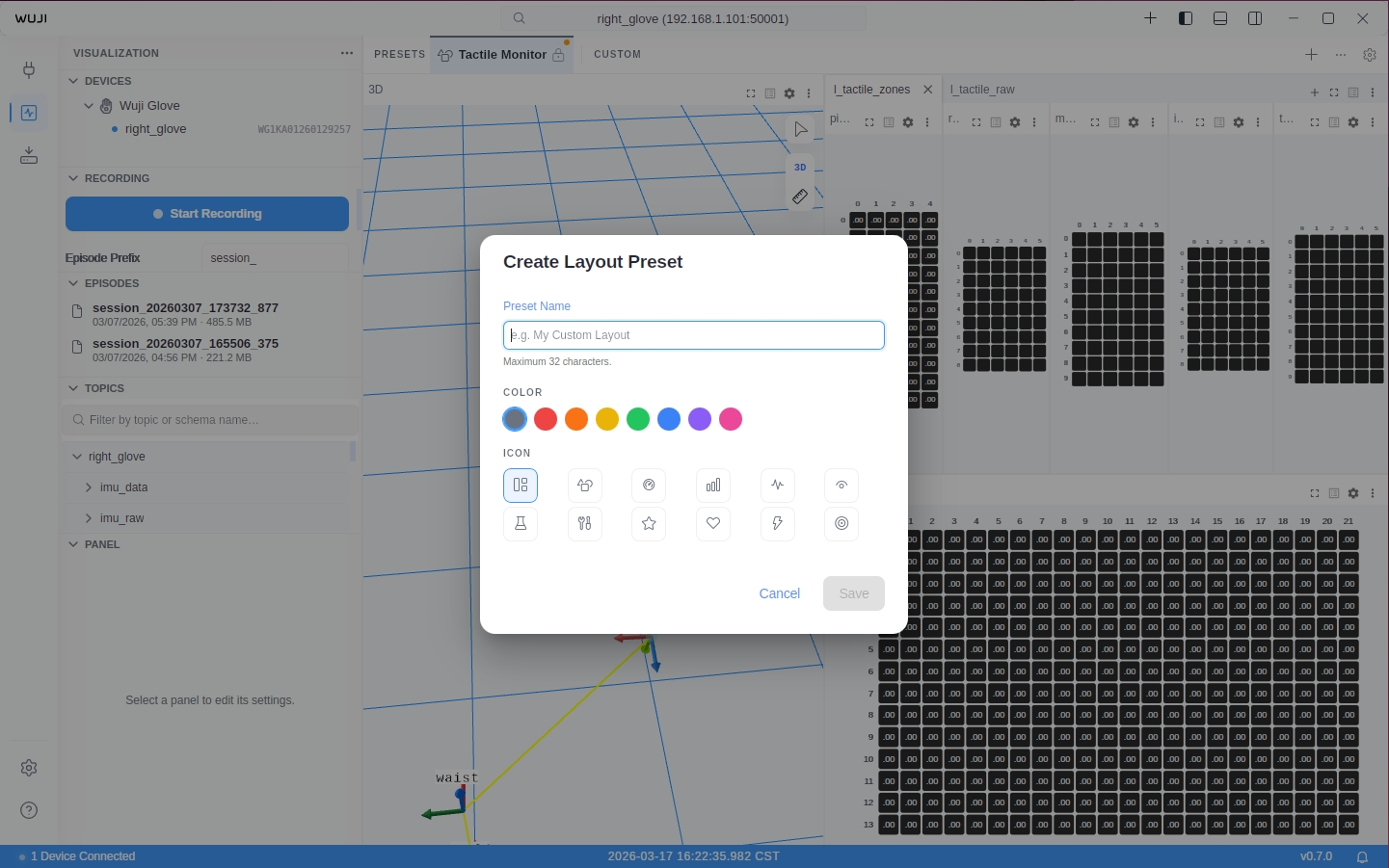
Save a Preset
- Arrange panels in the desired layout.
- Click the + button in the preset bar.
- Enter a name (up to 32 characters), choose a color and icon, then click Save.
Switch Presets
- Click a preset tab to activate it.
- Press Alt+1 through Alt+9 to switch to the preset at that position.
Manage Presets
Right-click a preset to access the context menu:
Actions marked with conditions are only available when those conditions are met.
| Action | Built-in Presets | Custom Presets |
|---|---|---|
| Reset to Default | When modified | — |
| Save Changes | — | When modified |
| Revert to Saved | — | When modified |
| Rename | — | Yes |
| Edit Color & Icon | — | Yes |
| Duplicate | Yes | Yes |
| Export as JSON | Yes | Yes |
| Delete | — | Yes |
Dirty State
When you modify a layout without saving, an amber dot appears on the preset tab. Right-click the preset to Save Changes or Revert to Saved (for custom presets) or Reset to Default (for built-in presets).
Import and Export
- Export: Right-click a preset → Export as JSON, or click the ⋯ menu → Export All Presets.
- Import: Click the ⋯ menu → Import Layout..., then select a
.jsonfile. Imported presets are added as custom presets.