Firmware Upgrade
During the upgrade, do not disconnect the USB connection, close the upgrade software, or disconnect device power. Keep the computer active and avoid entering sleep mode.
One-Click Upgrade (Recommended)
-
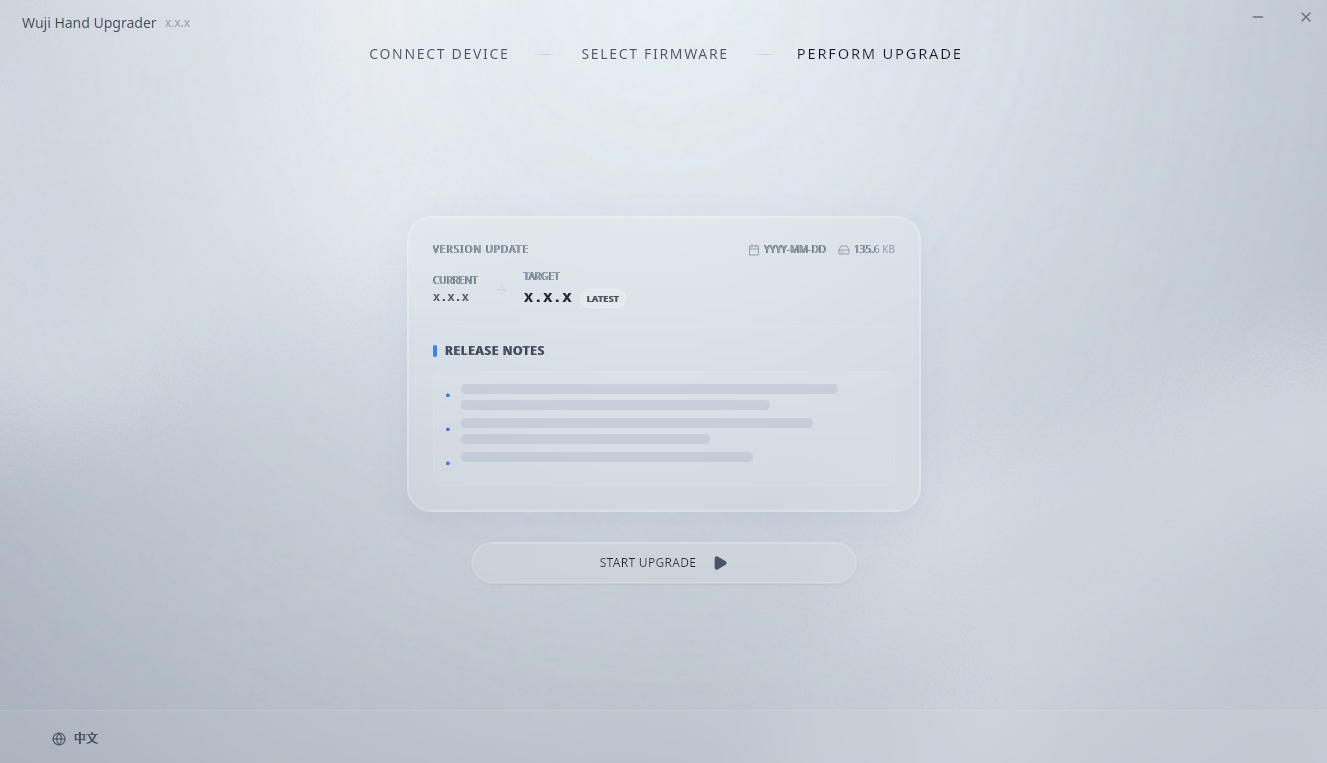
On the CONNECT DEVICE screen, click ONE-CLICK UPGRADE to open the PERFORM UPGRADE screen.
-
After confirming the device information and target version, click START UPGRADE.
-
The software automatically performs the following operations and waits for the upgrade to complete:
- Download the latest firmware
- Verify firmware integrity
- Execute the flashing operation
-
After the upgrade completes, the software opens the Update Complete screen. See Upgrade Complete for the closing steps.
Manual Firmware Selection
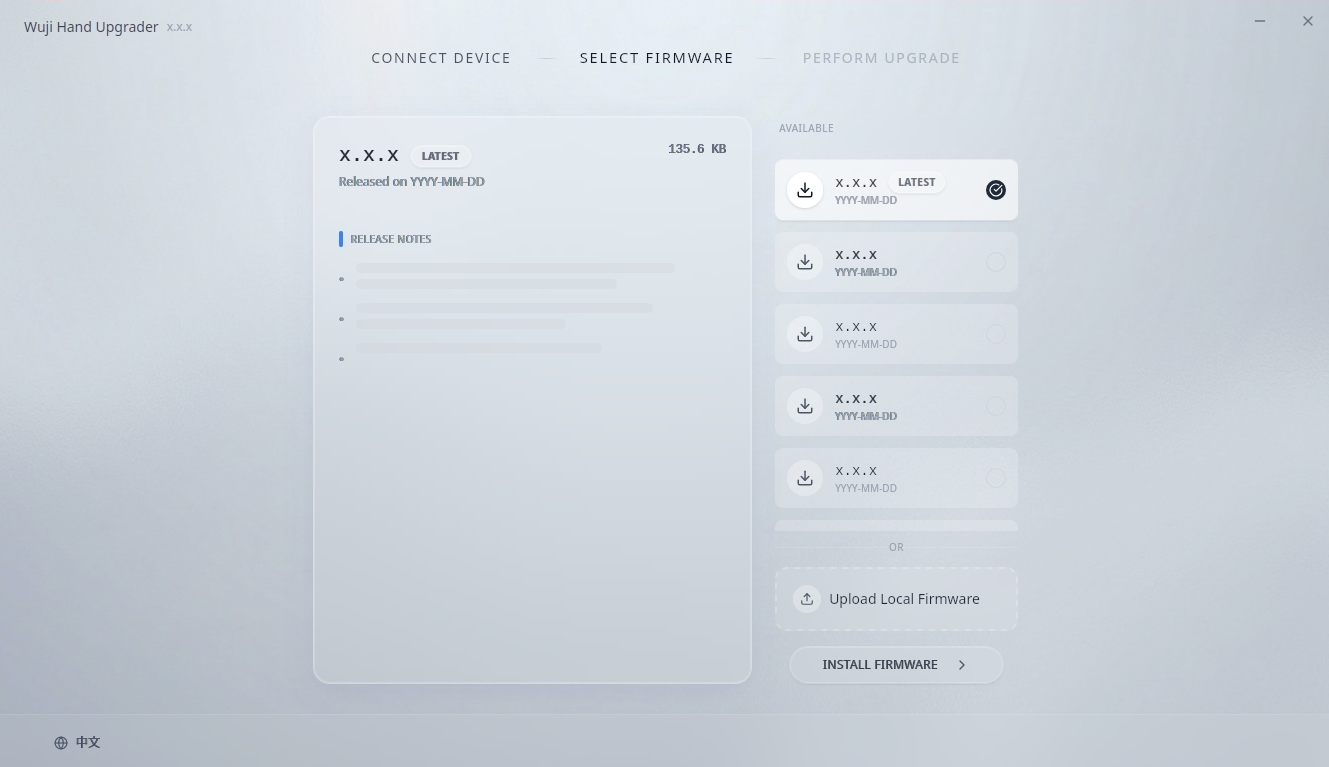
If you need a specific firmware version or a local firmware file, use manual selection mode. On the CONNECT DEVICE screen, below ONE-CLICK UPGRADE, click Or select version manually to open the SELECT FIRMWARE screen.
- The left side shows firmware details and RELEASE NOTES
- The right side shows the AVAILABLE list
- The lower-right area shows Upload Local Firmware and INSTALL FIRMWARE
Select Online Firmware
- In the AVAILABLE list, select the desired firmware version.
- Click the version card to select it.
- Click INSTALL FIRMWARE to start the upgrade.
Select Local Firmware
- Click Upload Local Firmware.
- Select the local firmware archive file (.zip format).
- Wait for file extraction and verification to complete.
- Click INSTALL FIRMWARE to start the upgrade.
After clicking INSTALL FIRMWARE, wait for the flashing to complete, then follow Upgrade Complete for the closing steps.
Upgrade Complete
After the upgrade flow finishes, the software opens the Update Complete screen with Firmware version verified.
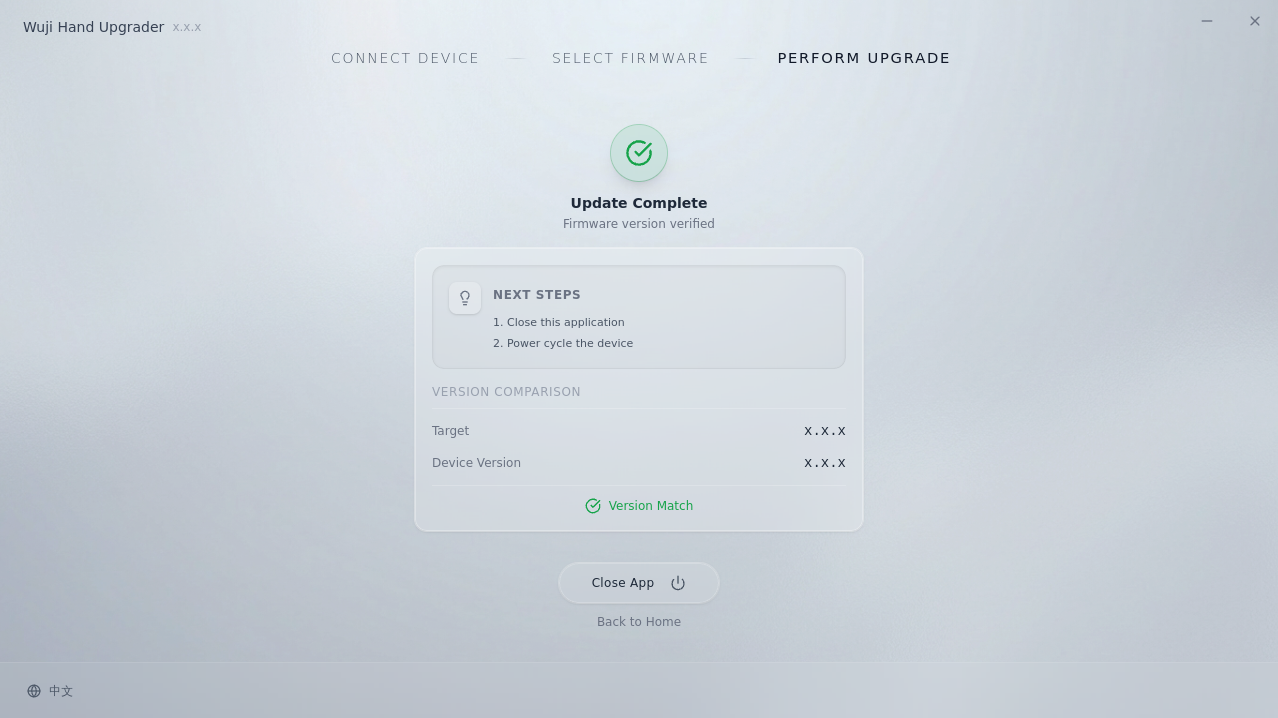
The screen displays:
- NEXT STEPS: Close this application and Power cycle the device
- VERSION COMPARISON: Current vs Target, marked Version Match
To finish the upgrade:
- Click Close App to exit the Upgrader, or click Back to Home to continue upgrading another device.
- Power off Wuji Hand, then power it on again to exit Bootloader mode and return to normal operation.