Connect Device
Launch the Software
Before launching the application, ensure Wuji Hand is powered off.
Method 1: Search for wujihand-upgrader in the application menu and click the icon to launch
Method 2: Run the command in the terminal
wujihand-upgraderThe main interface looks like this:
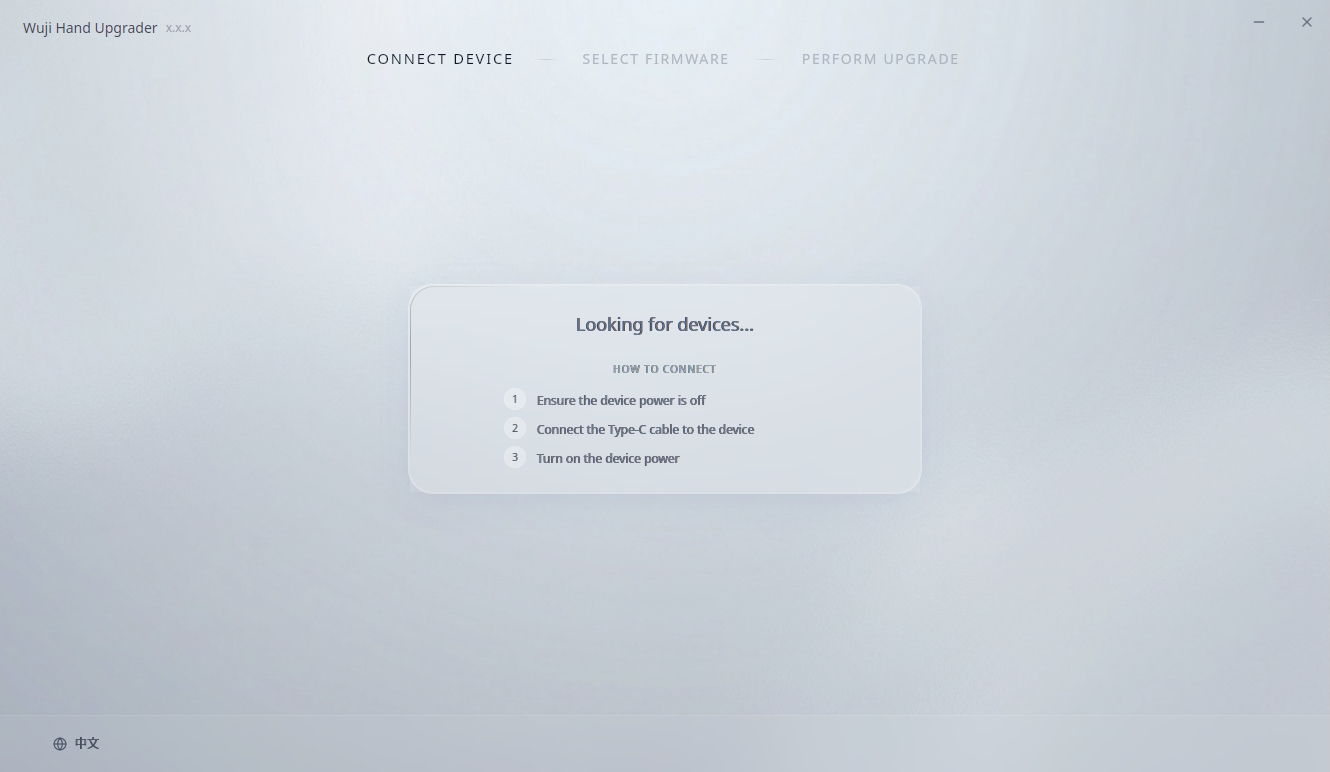
The first launch may take longer as the application extracts and initializes.
Hardware Connection
With Wuji Hand still powered off, connect it to the computer using the USB A to USB C cable included in the package, then power on the hand.
Automatic Connection
After Wuji Hand is powered on, the application automatically scans for devices, connects to the Bootloader, and waits for the connection to establish.
The device must be in Bootloader mode for firmware upgrade. If the software prompts that the device is not in Bootloader mode, keep the USB connected, power off the hand, then power it on again and retry.
Device Information Display
After successful connection, the interface displays the following device information:
- PORT: Serial port path of the connected device (e.g., /dev/ttyUSB*)
- SYSTEM VERSION: Current system version of the device
- NODE STATUS: Online nodes/Total nodes (hover over the info icon to view detailed node version information)
- STATUS: Current device status (for example, Ready)
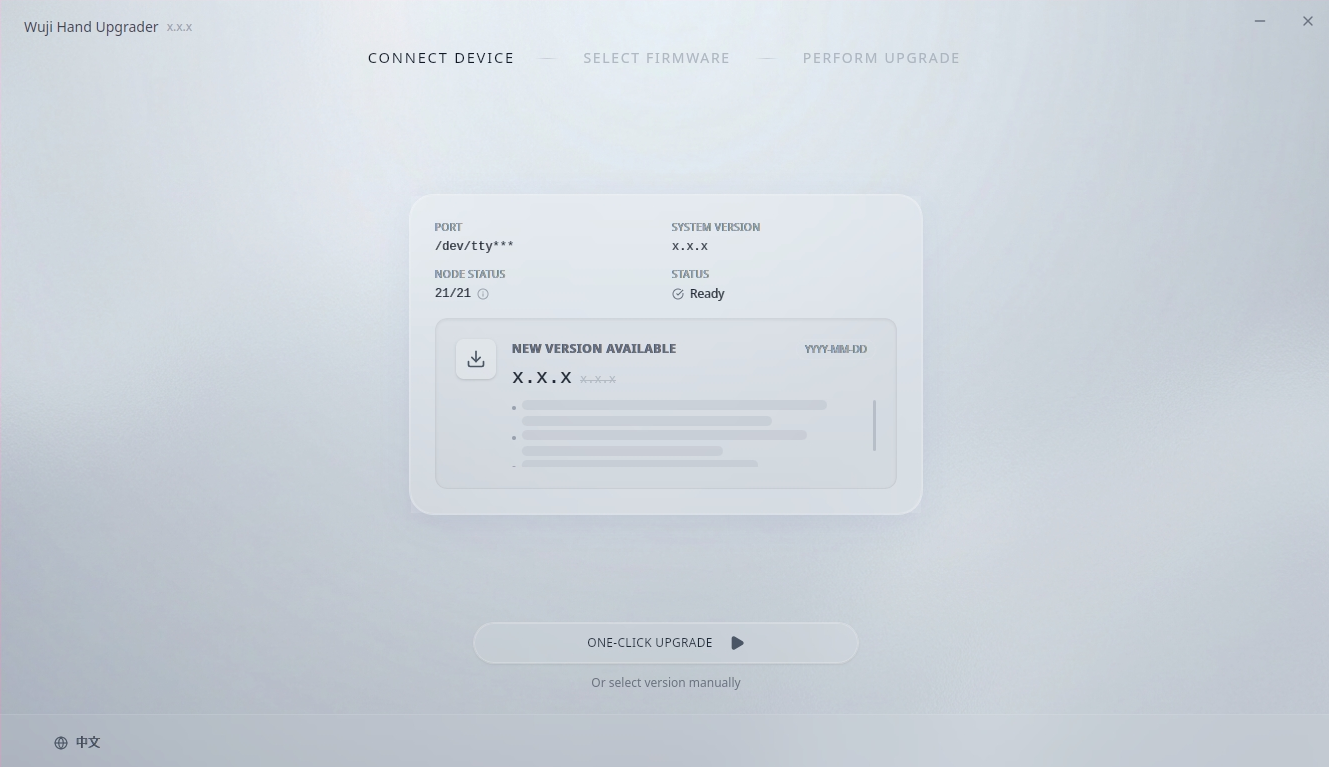
After confirming the device information, proceed with the firmware upgrade.