

wuji viz shows live Wuji Hand 2 and Wuji Glove data in your browser. The visualization runs in the Rerun Web Viewer, a web page that wuji viz serves locally and opens in your browser, with no extra software to install. Each session connects to one device and adapts the Viewer to it:
- A Wuji Hand 2 with fingertip tactile sensors shows a 3D hand model that follows the joint states, arrows for the force at each tactile point and each fingertip resultant, enlarged fingertip panels, and rolling resultant-force charts.
- A Wuji Hand 2 without tactile sensors shows the 3D hand model only.
- A Wuji Glove shows the hand skeleton, the EMF receivers, the tactile point cloud, and the raw tactile matrix.
Start the Viewer
Connect the device and run:--sn, the command scans for Wuji Hand 2 and Wuji Glove devices together. It connects directly when exactly one supported device is found. When several are found in an interactive terminal, select one from a list that shows the serial number and device type. Press Esc or Ctrl+C in the list to cancel: the command prints Cancelled., exits with code 9, and doesn’t connect to another device. A connection failure doesn’t fall back to another device either. Use --sn to target a specific device:
--address and --handedness aren’t accepted as selectors. The command reads handedness from the device.
The command prints the Viewer URL and opens it in the default browser. Add --no-open to print the URL without opening a browser. Press Ctrl+C to stop the Viewer and release the device connection.
Each session supports one active Viewer page. Close the page before opening the URL again, in another browser, or on another device. When two pages stay connected, a page that falls behind or moves to the background eventually stops updates on both.
Zero Wuji Hand 2 Tactile Sensors
Zeroing applies to a Wuji Hand 2 whose five fingertip sensors are all online at startup. By default,wuji viz zeroes them once before streaming. It first checks that every sensor reports the expected model and is ready, then sends the whole-hand zero-baseline calibration to the device and waits for every finger to finish. Streaming starts after the terminal shows Tactile zero: ready. This step is equivalent to tactile_calibrate() in the SDK. The baseline is a runtime baseline held on the device, and it doesn’t overwrite the device’s persistent tactile model.
Keep all five fingertip surfaces unloaded from the moment you run the command until the terminal shows Tactile zero: ready. If a fingertip is pressed against a table or held, that contact force becomes the zero, and the displayed force is off after you release it.
Skip zeroing:
The command exits with an error when zeroing doesn’t finish within 10 seconds, a sensor is still calibrating when the command starts, or a sensor reports an unexpected model. Check the device before trying again. Pressing Ctrl+C during zeroing waits for the in-flight operation to finish before exiting.
A Wuji Hand 2 without tactile sensors and a Wuji Glove skip zeroing automatically, and
--no-zero has no effect on them.
Read the Viewer
The Blueprint panel on the left lists the views. Select the eye icon next to a view to hide or show it. The layout depends on the connected device.Wuji Hand 2 with Tactile Sensors
The numbers in the screenshot mark four kinds of content: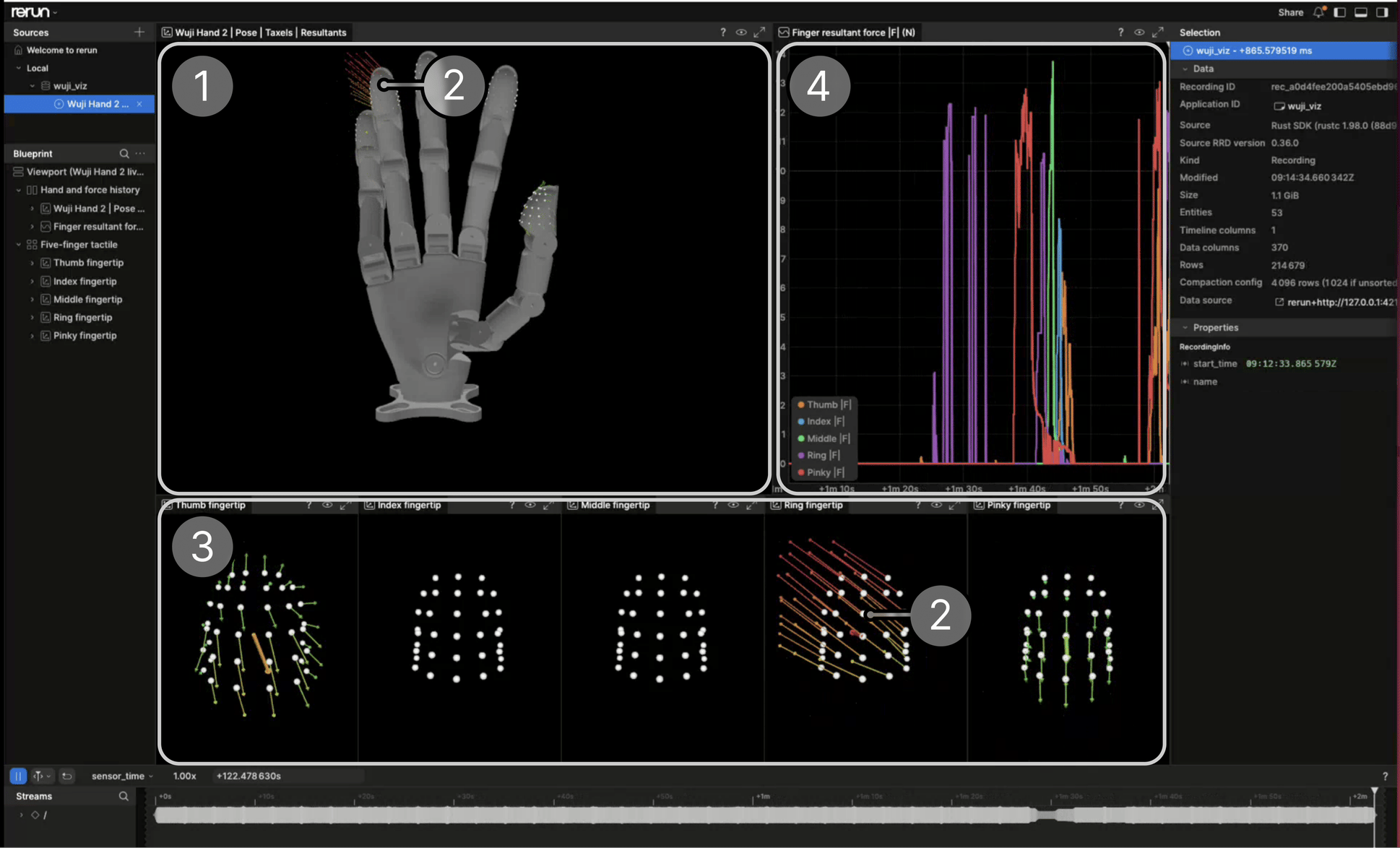
- 3D hand model: the top-left panel. The model follows the live joint states, and the white dots on the fingertips are the tactile sensing points.
- Force arrows: when a fingertip is loaded, the 3D model and that fingertip’s panel draw arrows from the sensing points. A thin arrow at each point shows that point’s three-axis force, and a thicker arrow shows the fingertip’s resultant force. Arrow length is proportional to the force, and the color shifts from green through yellow to red as the force grows.
- Fingertip panels: the five panels along the bottom, ordered from thumb to pinky, show each fingertip’s sensing points and arrows at a larger scale.
- Resultant-force charts: the top-right panel plots the resultant force of all five fingertips over a rolling 60-second window. Line colors match the fingers in the legend.
Wuji Hand 2 Without Tactile Sensors
At startup, the command checks which fingertip tactile nodes are online. When none is online, the terminal printsTactile: unavailable; starting joint-only visualization., and the Viewer shows only the 3D hand model, including the fingertip shells. The fingertip panels and resultant-force charts are hidden. When only some sensors are online, the Viewer keeps all five fingertip panels and leaves the panels of the missing fingers empty.
Wuji Glove
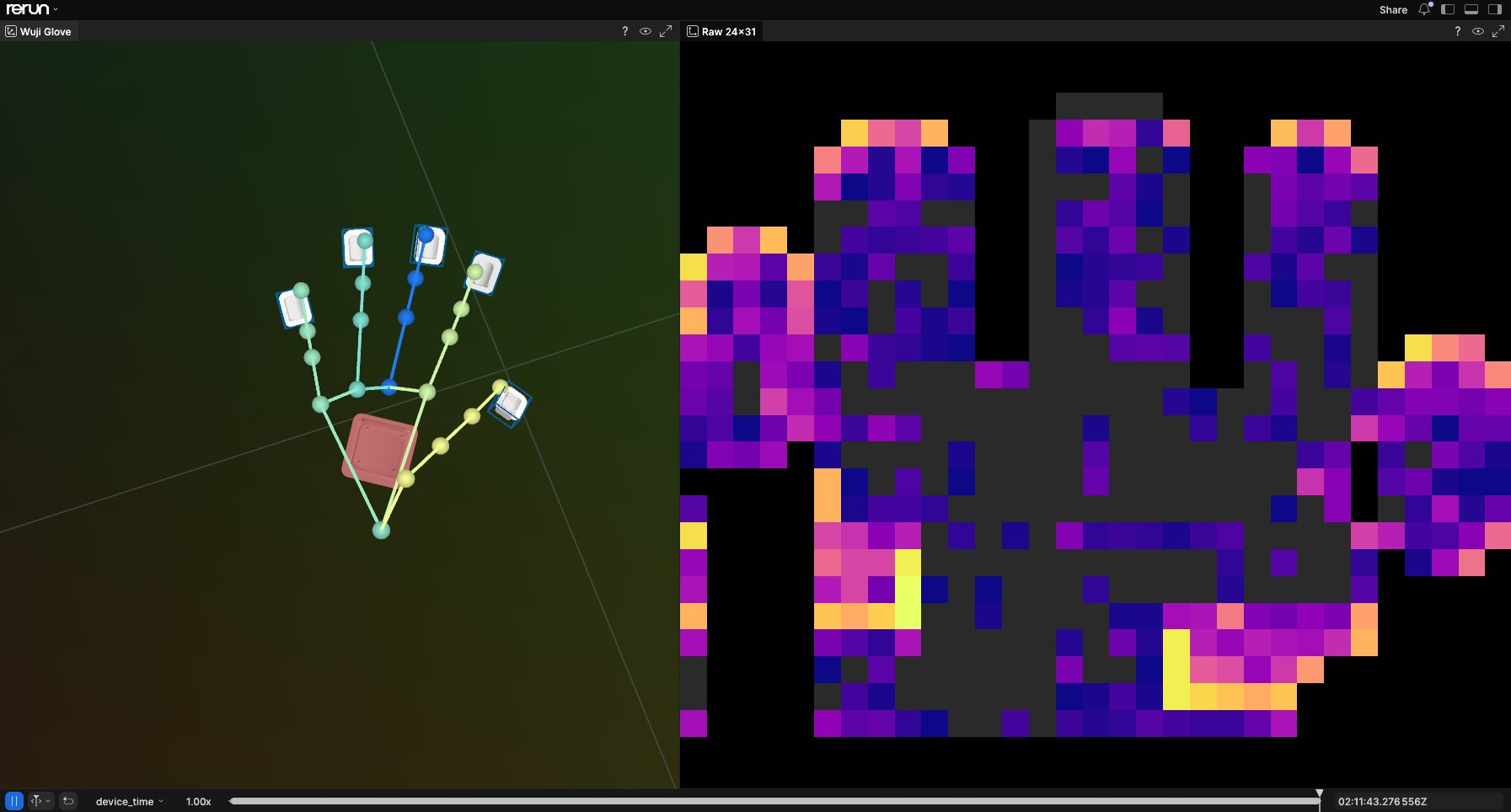
The Viewer shows the hand skeleton, the EMF receivers, the tactile point cloud, and the raw tactile matrix. At startup, the command requests 60 Hz on theemf_poses, tactile, tactile_zones, and palm IMU streams and prints the rate each stream applies. Firmware without rate control keeps its default stream rates, and the command prints a warning. In both cases the Viewer renders from the latest received state at up to 60 Hz.
The image below shows the Viewer layout with a Wuji Glove connected. The 3D hand skeleton and the EMF receivers sit on the left, and the raw tactile matrix on the right:
Handle Faults
The Viewer uses the latest received state. Detailed warnings and errors go to the terminal, and the Viewer page doesn’t show a health marker.- On Wuji Hand 2, when a fingertip stream fails after producing valid data, that panel keeps its last frame while the other streams continue. A joint-stream fault keeps the last valid hand pose.
- On Wuji Glove, an invalid frame in one stream keeps that stream’s last valid view while the other streams continue.
- After a device disconnect, the Viewer keeps the last state, and the command doesn’t reconnect. Press Ctrl+C to stop, and the command exits with a failure.
Use Structured Output
With--json or --jsonl, the command writes one startup report to stdout once the Viewer is ready, then keeps running. The report contains status: "running", the device serial number and handedness, the Viewer URL, and whether LAN access is on. Nothing else goes to stdout after that: live data goes only to Rerun, and progress, warnings, and errors stay on stderr. Ctrl+C doesn’t add a second record.
viewer.url value as printed. Its query parameters connect the Viewer page to the data stream, and a trimmed URL opens an empty Viewer.
Structured or unattended sessions never open the selector, so they must use --sn when several supported devices are available. Cancelling the interactive selector exits with code 9. A startup failure leaves stdout empty and writes the error to stderr.
Share on a Trusted Network
The Viewer binds to loopback by default. Use--lan to select a private address on the default route, or use --bind to select a local address:
--lan and --bind can’t be used together. Non-loopback access has no authentication or TLS. Use it only on a trusted network, and share the printed URL only with intended viewers. The one-active-page rule still applies: a shared URL must be open in one page at a time.