 Wuji Hand
 Wuji Glove
 Wuji Studio
 Wuji SDK
Data Recording
On the Visualization page, click the Show bottom bar icon in the top-right corner to expand the Bottom bar, then switch to the RECORDING tab to record all subscribed Topics as MCAP files for offline playback and analysis.
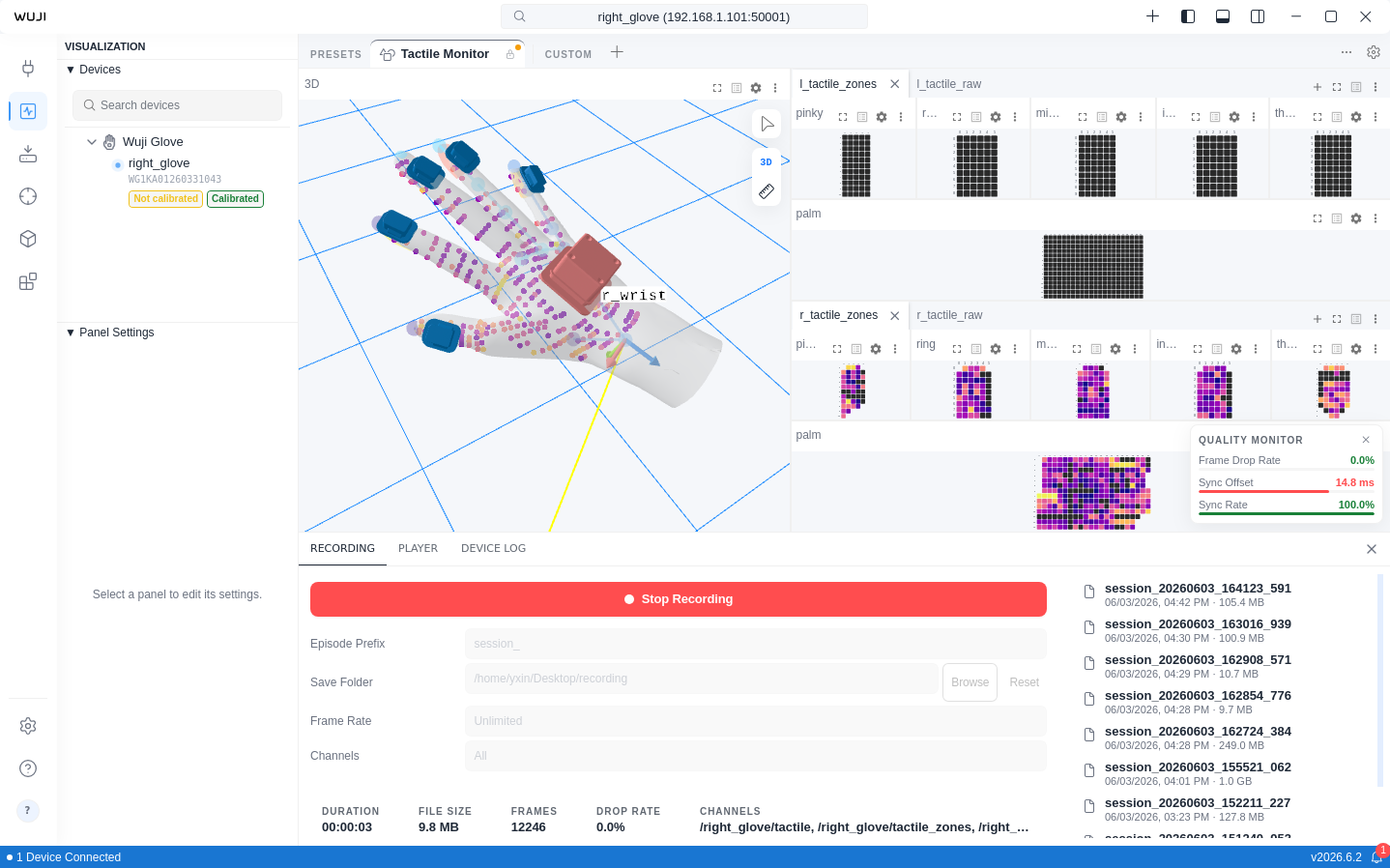
Start and Stop Recording
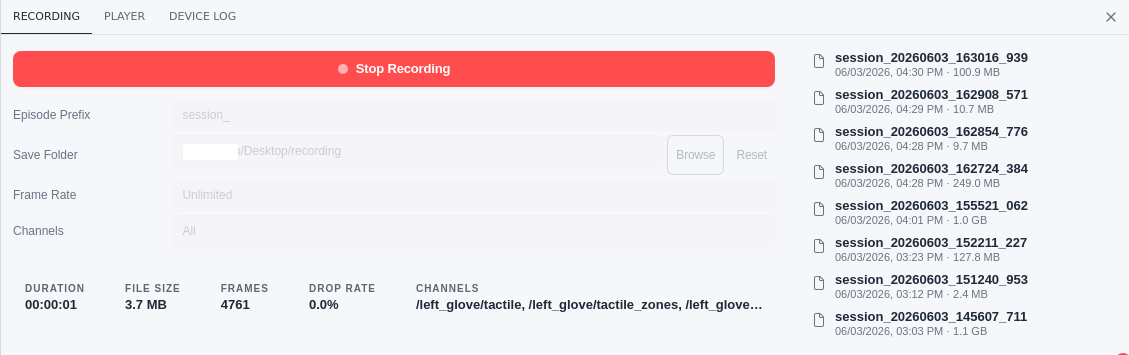
| Area | Element | Description |
|---|---|---|
| Controls | Start Recording / Stop Recording | Recording button. Shows Start Recording when idle (select to begin), Stop Recording while recording (select to stop). Dims briefly as the file writes |
| Episode Prefix | Filename prefix, default session_ | |
| Save Folder | Save directory. Browse to choose a custom folder, Reset to restore the default. Shows Default when unset. See File Storage | |
| Frame Rate | Recording frame rate, fixed at Unlimited | |
| Channels | Channels to record, fixed at All | |
| Status | DURATION | Elapsed time, HH:MM:SS format (shown live while recording) |
| FILE SIZE | Current file size (B / KB / MB / GB) | |
| FRAMES | Total frames recorded | |
| DROP RATE | Data frame drop percentage | |
| CHANNELS | Active recording channels | |
| Episodes | Episodes | Lists saved MCAP files on the right of the panel, newest first, each with filename, creation time, and size. Click an entry to open the containing folder in your file manager |
Episode Prefix and Save Folder can be changed before recording and lock while recording. When no device is connected, the recording button is disabled and the panel shows No device connected. Select Go to Connect to open the Device Management view.
Connect a device before recording. If a device disconnects during recording, the session stops automatically and the file is saved.
If the default save folder doesn't exist, starting a recording fails with Recording error: Failed to start recording. Select Browse to choose a valid folder.
Quality Monitor
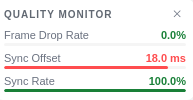
The QUALITY MONITOR panel appears in the bottom-right corner of the Visualization View during recording, displaying three quality metrics:
| Metric | Good | Warning | Bad |
|---|---|---|---|
| Frame Drop Rate | < 2% | 2%–5% | ≥ 5% |
| Sync Offset | < 5 ms | 5–10 ms | ≥ 10 ms |
| Sync Rate | ≥ 95% | 90%–95% | < 90% |
Each metric shows a color-coded indicator: green for Good, yellow for Warning, red for Bad. When a metric exceeds its threshold, a warning notification appears.
File Storage
Recorded files are saved by default to:
Documents/WujiStudio/recordings/Filename format: {prefix}{YYYYMMDD}_{HHMMSS}_{milliseconds}.mcap
For example, with the default prefix session_:
session_20250316_143025_123.mcapBefore recording, adjust two save settings in the RECORDING panel (locked while recording):
- Filename prefix: change Episode Prefix
- Save folder: select Browse next to Save Folder to choose a custom directory, or Reset to restore the default. When unset, the field shows Default, and files go to the default path above
Data Playback
Open a local MCAP recording and replay it in the visualization panels to analyze captured data frame by frame.
Open a Recording
- In the Bottom bar, select the PLAYER tab
- Select Open File (folder icon)
- In the dialog, find the
.mcapfile to replay - Select Open
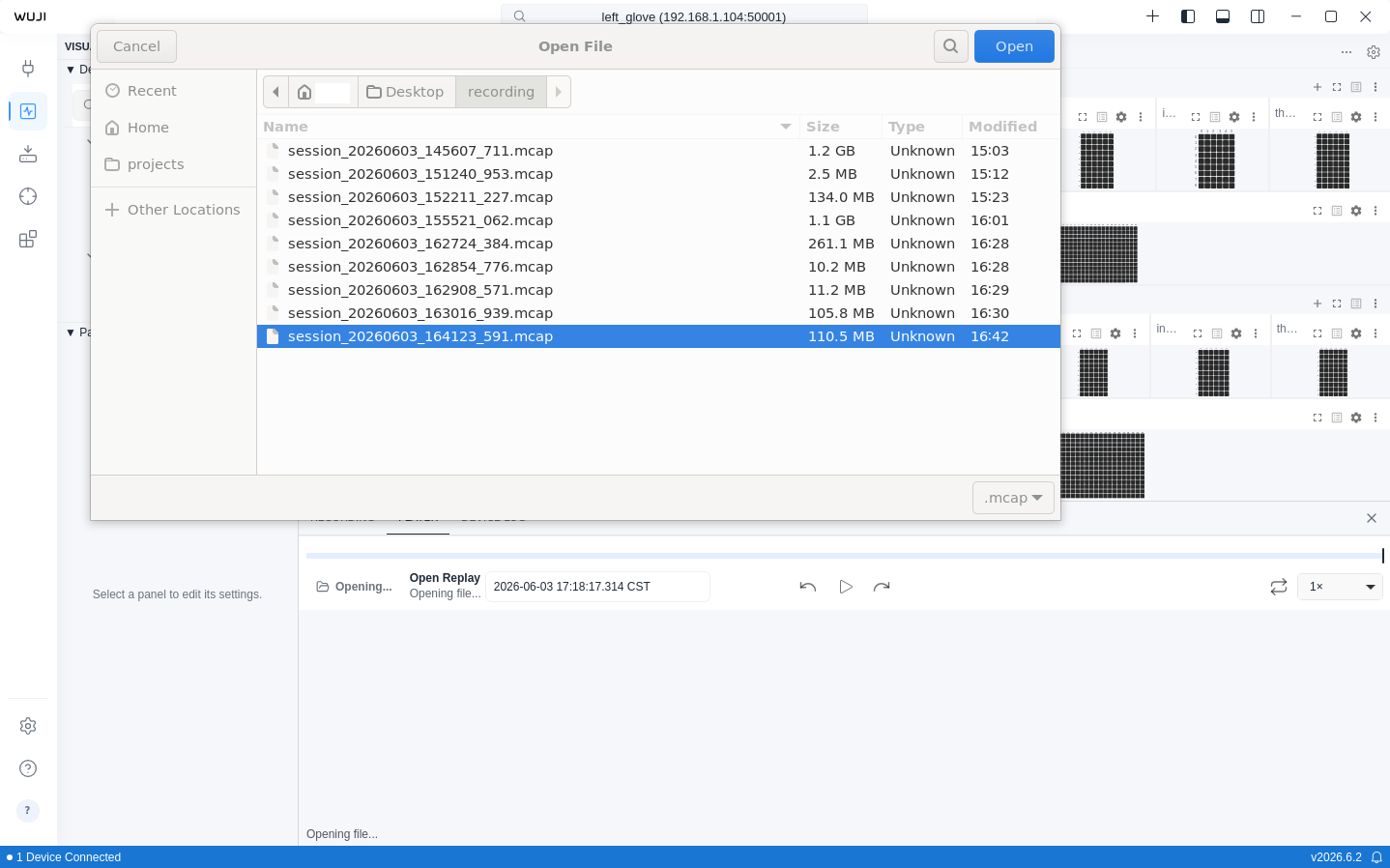
Replay one MCAP file at a time. Opening a file does not start playback automatically—select Play to begin.
During replay, the 3D panel is taken over by the replay and is temporarily unavailable for live data.
Playback Controls
The control bar at the bottom provides replay controls:
| Control | Description |
|---|---|
| Play / Pause | Start or pause replay. Shortcut: Space |
| Timeline | Drag the scrubber to jump to any moment |
| Step back / forward | Move one frame back or ahead. Shortcuts: ← / → |
| Loop | Restart from the beginning when replay reaches the end |
| Playback speed | Select from 0.01× to 5× across 11 steps. Default is 1× |
The current time and total length appear as "current / total". Click the current time to enter a target moment and jump precisely.