

For device-side issues such as glove connection, tactile and EMF data anomalies, see Wuji Glove Troubleshooting. For SDK-related issues, see Wuji SDK Troubleshooting.
Won’t start / white screen or crash
- Confirm your OS meets requirements (Ubuntu 22.04 LTS or later)
- Update GPU drivers to the latest version
- Install WebKitGTK:
- Delete the application data directory and retry:
- If it still won’t start, check your system proxy. A proxy that intercepts WebView local resource loading causes a blank screen. Launch with proxy environment variables temporarily cleared:
Panels show blank
- Confirm a device is connected and you’re in the Visualization View
- Check if the panel is subscribed to the correct Topic
- Try resetting the panel layout (right-click a preset tab → Reset to Default)
Restore the default layout
To restore the default layout after changing it, right-click the current preset tab in the preset bar at the top (Tactile Monitor in the image below) and select Reset to Default. See Layout Presets for more preset operations.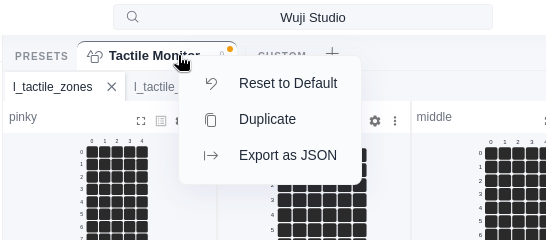
Tactile matrix heatmap shows all black
- Confirm you’re subscribed to the correct Topic (tactile or tactile_zones)
- Check if the Matrix panel data range is set correctly (default 0.0~1.0)
- Press the glove surface lightly and observe if data changes
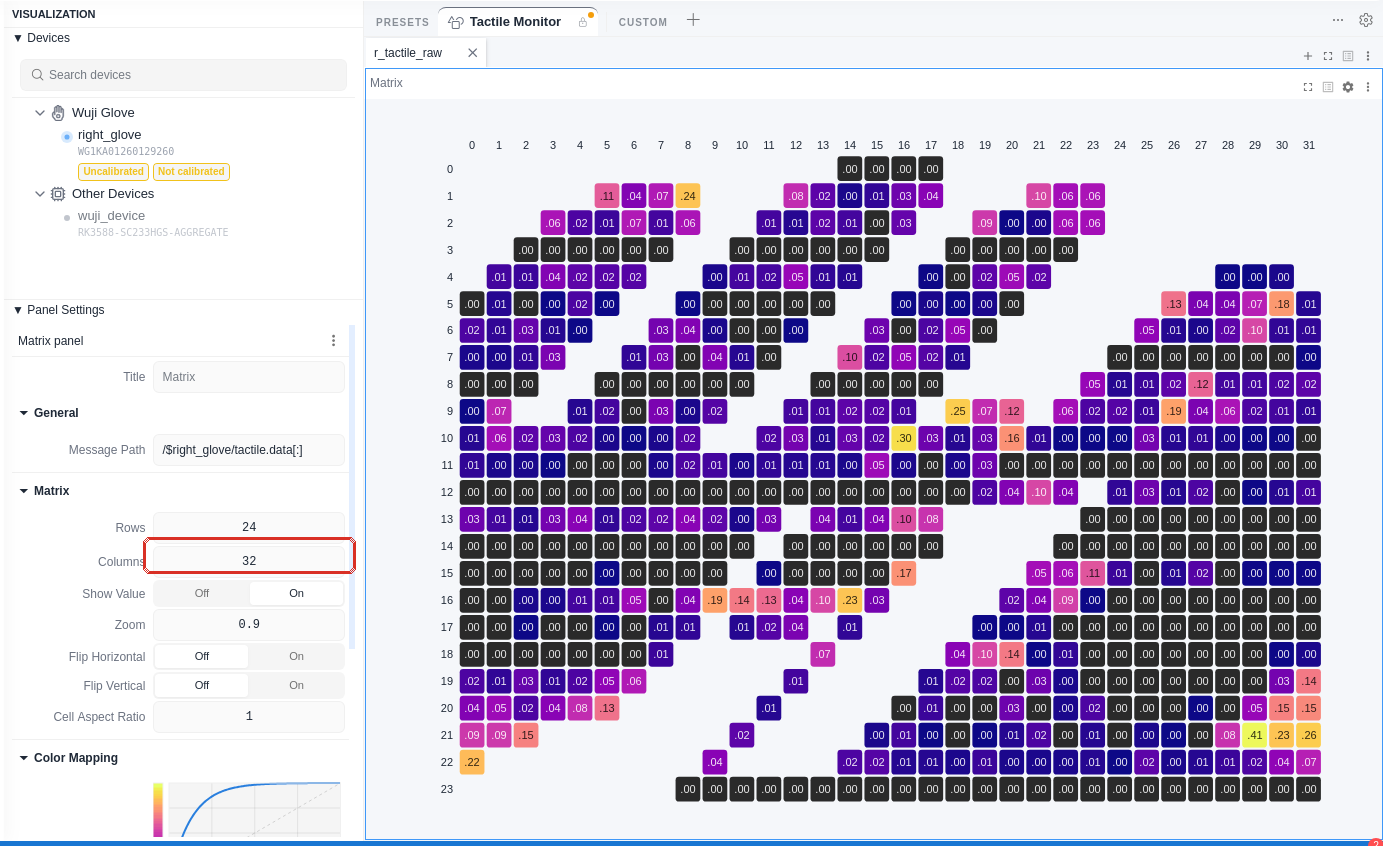
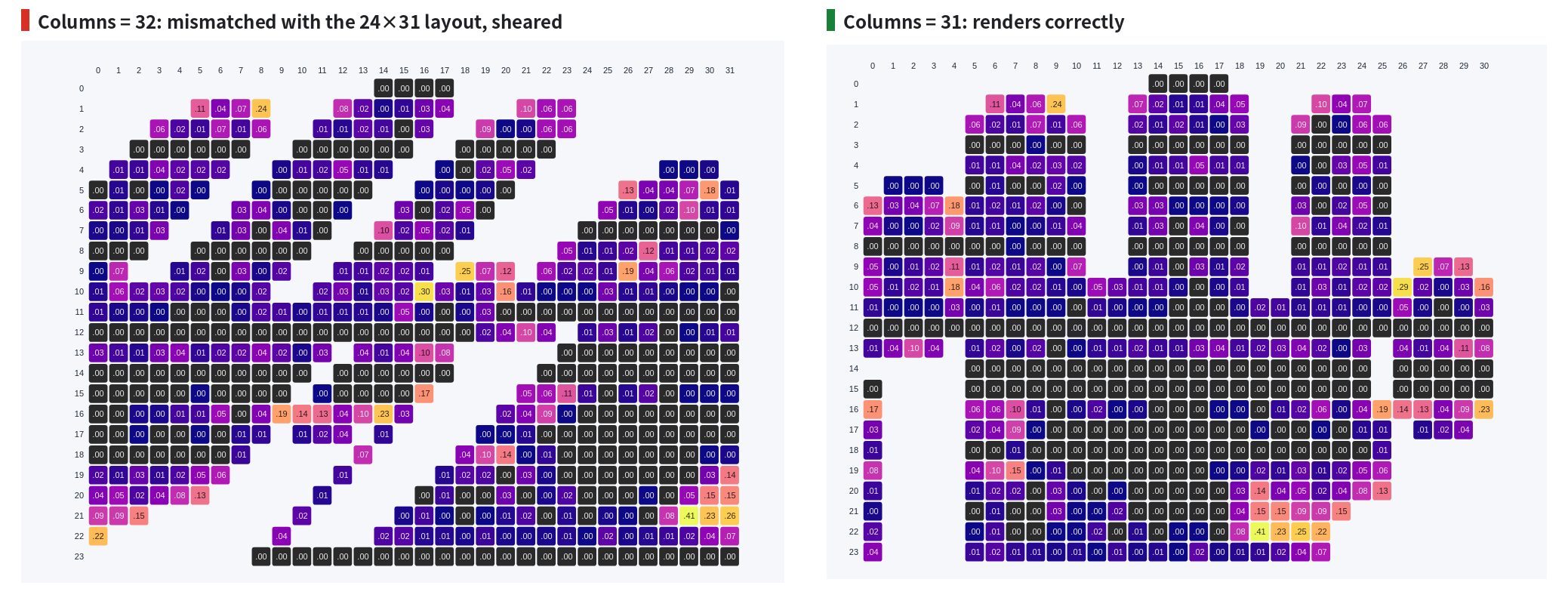
Tactile matrix heatmap is misaligned or sheared
- Check that Columns in the Matrix panel settings is 31: the tactile matrix is 24×31, and a mismatched column count shifts each row by one cell, shearing the whole heatmap
- Set Columns back to 31 in the Sidebar’s Panel settings, or right-click the preset tab and select Reset to Default
Firmware upgrade failed
- Ensure stable power supply — do not disconnect during upgrade
- Ensure stable network connection — use wired connection
- The glove has a built-in rollback mechanism that automatically restores the previous version on failure
- Wait for the glove LED to indicate rollback completion, then retry
Encountering errors during upgrade
Use local firmware for upgrade
In Step 2, click the Upload local file button to select a firmware file (.zip format). After upload, the app automatically parses and displays the firmware version, release date, and release notes.Get technical support
Contact [email protected] with the following information:- Device serial number (SN)
- Firmware version
- Wuji SDK / Wuji Studio version
- Operating system and version
- Steps to reproduce the issue