


Use Presets
Save a Preset
- Arrange panels in the desired layout.
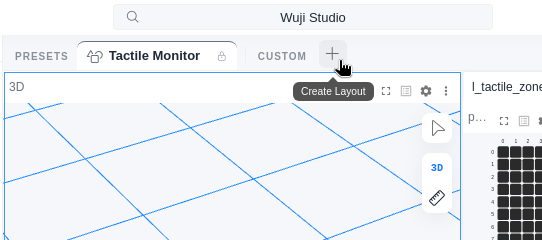
- Click the + button in the preset bar (Create Layout in the image below).
- Enter a name (up to 32 characters), choose a color and icon, then click Save. The new preset appears as a tab to the right of the CUSTOM label.
Manage Presets
Right-click a preset tab to open the action menu. Available actions depend on the preset type:- Built-in presets: Duplicate (copies it as a custom preset) and Export as JSON. After you change the layout, Reset to Default also appears.
- Custom presets: Rename, Edit Color & Icon, Duplicate, Export as JSON, and Delete. After you change the layout, Save Changes and Revert to Saved also appear.
When you change a layout without saving, an amber dot appears on the preset tab to mark unsaved changes.
Import and Export
- Export: Right-click a preset → Export as JSON, or click the ⋯ menu → Export All Presets.
- Import: Click the ⋯ menu → Import Layout…, then select a
.jsonfile. Imported presets are added as custom presets.