

Tactile contact calibration applies only to the Wuji Glove. It is independent of device
calibration (pose calibration for fingertip pinch, four-finger bend, and similar
gestures), and the two do not affect each other.
Calibration Home
Before opening calibration, connect the Wuji Glove on the Device Connection page. Click the Tactile Calibration icon on the Activity bar to enter the home page: the Devices sidebar lists connected gloves and their calibration status on the left. The right side shows the title, the flow summary, and the start button at center.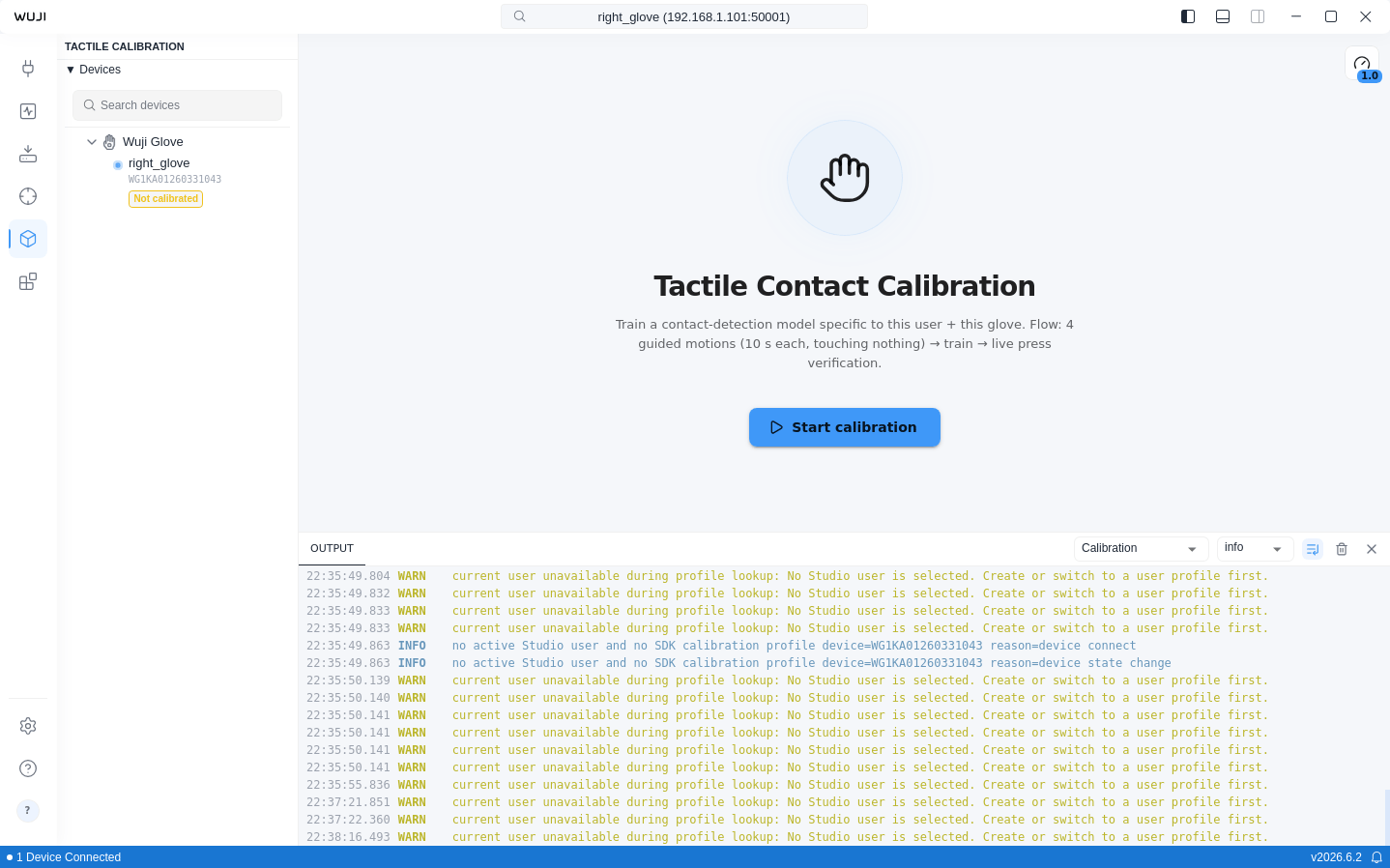
- No glove connected: shows Connect a Wuji Glove first
- A glove is connected but not selected: shows Select a Wuji Glove in the device tree on the left
- The background service is starting: shows sidecar starting…, which clears in a moment
Starting Calibration
Calibration records 4 guided motions in order, each for 10 seconds. See Motion Reference below for each motion’s illustration and tips.Completing a Motion
Each motion follows the same steps:- Read the prompt and illustration for the current motion
- Click Start. A 10-second countdown begins—repeat the motion 3 times within these 10 seconds
- When recording ends, click Next motion to move on
Motion Reference
| Step | Illustration | Motion | Operation guide |
|---|---|---|---|
| 1 | 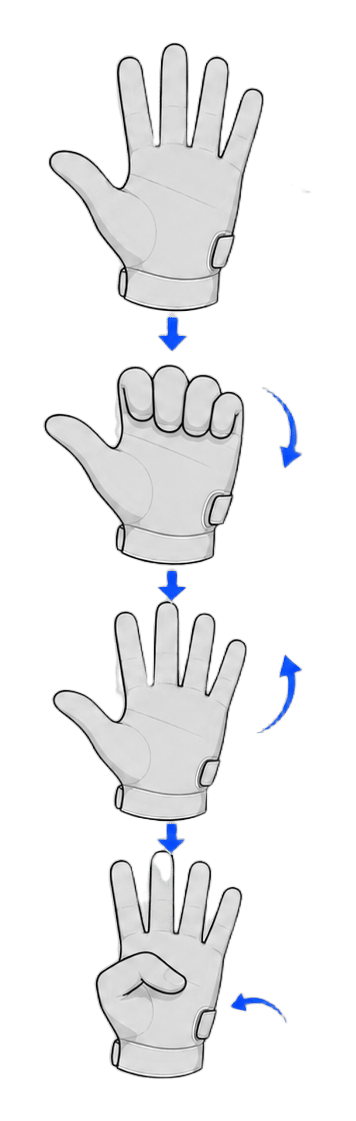 | Fold four fingers down, then thumb in | Keep the four fingers straight and fold them down ~90° at the base knuckles, then open again—repeat. On the last fold, tuck the thumb in across the palm |
| 2 | 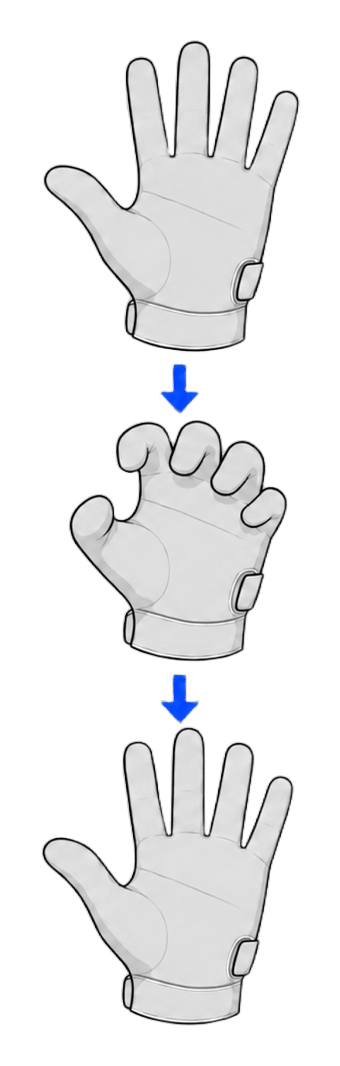 | Five-finger claw | Curl all five fingers, including the thumb, toward the palm into a claw, then open again—repeat |
| 3 | 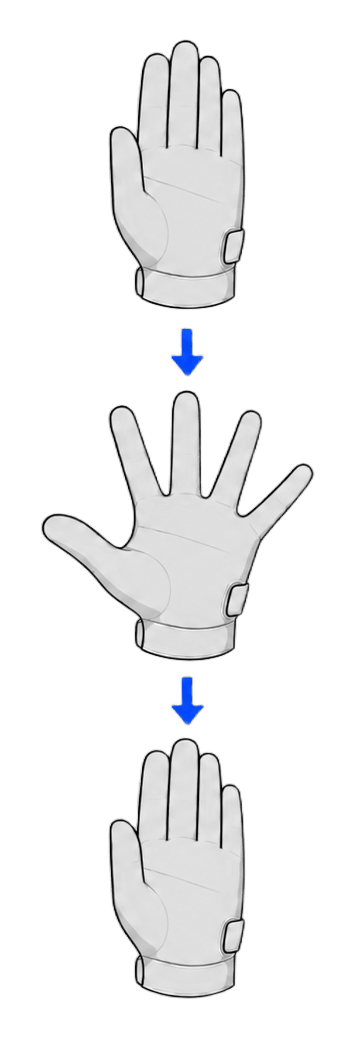 | Spread & close | Keep the fingers straight, spread them as wide as you can, then bring them back together—repeat |
| 4 | 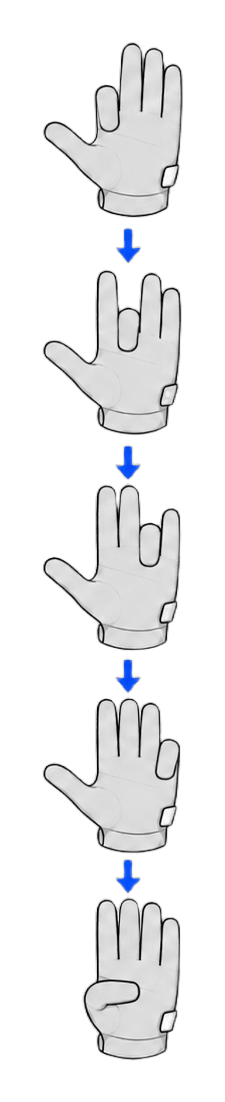 | Curl fingers one by one | Curl each finger down to the palm one at a time, from the index finger to the little finger |
Calibration Complete
After the fourth motion, training starts automatically and the screen shows Training… with progress. When training finishes, live verification begins: press different spots on the glove (fingertips, palm), and the matching areas light up red on the heatmap, with the prompt Press different spots on the glove (fingertips, palm) — matching areas should light up red. The completion page offers three actions:
The model saves automatically, binds to the current Studio user and glove SN, and loads the next time you subscribe to tactile data.
Calibration Output Location
Everything one calibration produces is archived in a single directory, per Studio user profile and per glove:model/ holds contact.safetensors (model weights) and contact.npz (reference data). The SDK loads the matching model automatically based on the active user and glove—no manual selection needed. The trained model powers the SDK’s binary contact and residual streams—see the TactileBinary and TactileResidual data reference for how to subscribe. calibration-data/ keeps the raw capture from each calibration, one data file per guided motion, 4 per complete run.
Each user profile keeps its own copy, and switching users or gloves doesn’t affect the others. To move a profile’s calibration output to another computer, use Basic Settings > Export and Import Data.
When to RecalibrateRecalibrate in these cases:
- You switch users or switch gloves
- Contact detection looks clearly off (a light touch doesn’t light up, or no contact shows red)
- After repair or part replacement