

Studio’s built-in hand retargeting algorithm and default URDF model are upgraded, so uncalibrated devices already perform well:
- Start with the default configuration
- If results fall short of expectations, create a user profile and calibrate the device
Watch the calibration video tutorial for a full walkthrough.
Calibration Home
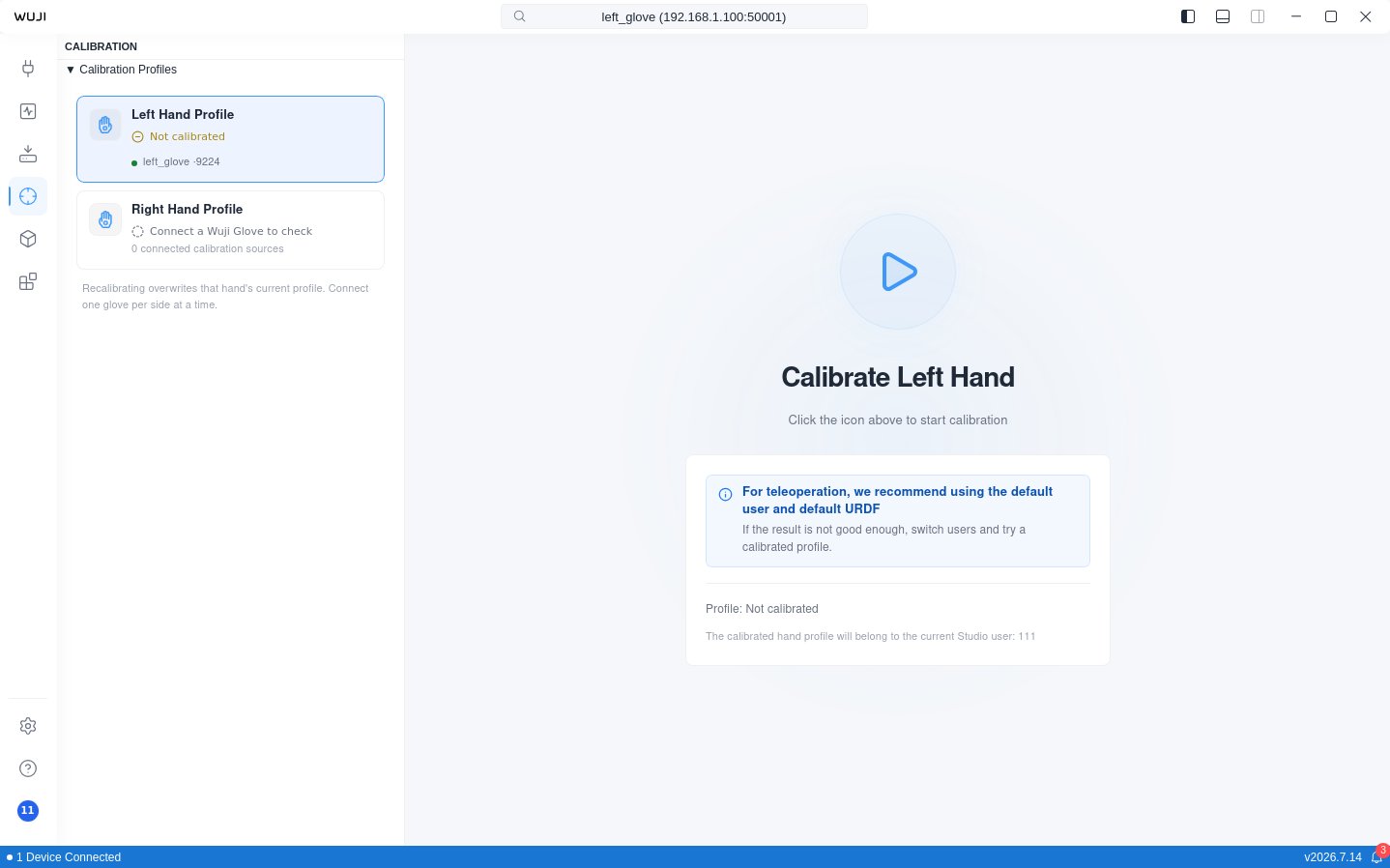
Before opening calibration, pair your Wuji device on the Device Connection page. Click the Calibration icon on the Activity bar to enter the home page. The Calibration Profiles sidebar on the left always lists two profiles, Left Hand Profile and Right Hand Profile. Each one shows your calibration status for that hand, along with the connected gloves available as capture sources. The right side is the calibration entry, with the Calibrate Left Hand or Calibrate Right Hand heading, the start button, and that hand’s profile status and owner. Profile statuses in the sidebar:
Select the hand you want to calibrate in the sidebar. If more than one glove is connected for that hand, pick this run’s capture source in the calibration entry first, then click the start button to enter the flow. An uncalibrated hand runs a first-time calibration. A calibrated one runs a recalibration—the flow is the same either way, and recalibrating overwrites that hand’s current result.
Data Panel
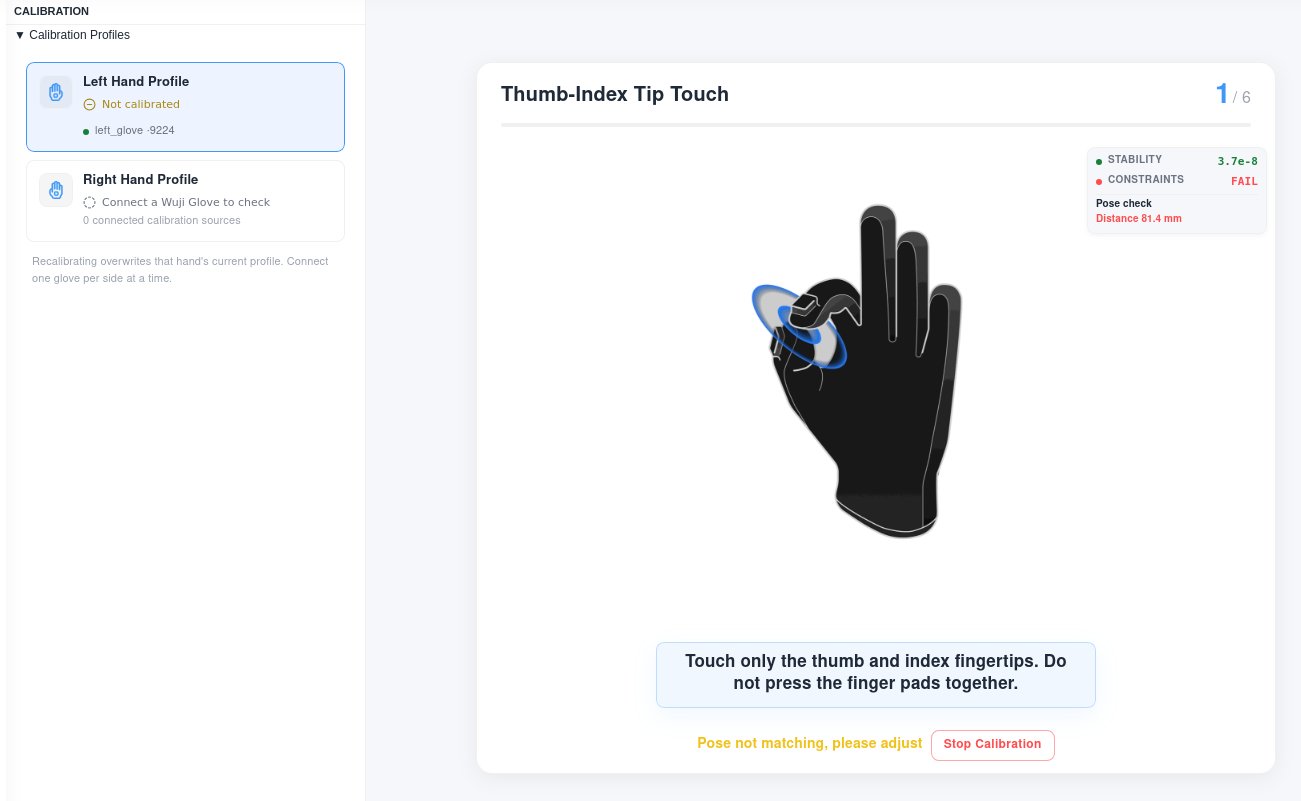
While calibration runs, the panel at the top right of the guide area shows two metrics side by side:Starting Calibration
Select a hand on the home page and click the start button to enter the flow, then run through 6 poses in order. See Pose Reference below for each pose’s illustration and tips.Completing a Pose
Calibration runs automatically—no manual clicks. Once you hold a pose, the system detects, collects, and advances on its own:- Pose your hand following the guide
- The system detects the pose and enters the Stabilizing phase, measuring how long you hold it steady
- Once stable enough, it auto-advances to the Collecting phase and records data
- When the pose completes, it shows Step completed and moves to the next pose automatically
Pose Reference
| Step | Illustration | Pose | Constraint | Operation guide |
|---|---|---|---|---|
| 1 | 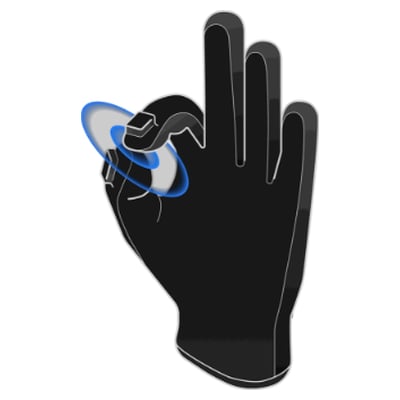 | Thumb-Index Tip Touch | Thumb–index EMF distance < 5 cm, with the fingertips facing each other at an angle > 100° (tip-to-tip, not pad-to-pad) | Touch only the thumb and index fingertips. Do not press the finger pads together. |
| 2 | 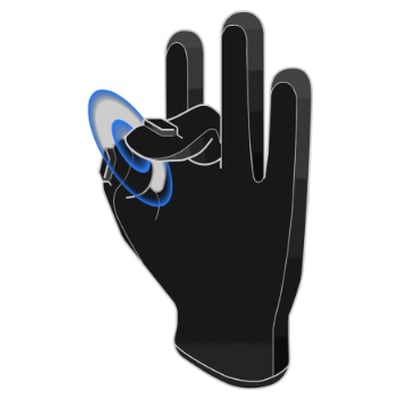 | Thumb-Middle Tip Touch | Thumb–middle EMF distance < 5 cm, with the fingertips facing each other at an angle > 100° (tip-to-tip, not pad-to-pad) | Touch only the thumb and middle fingertips. Do not press the finger pads together. |
| 3 | 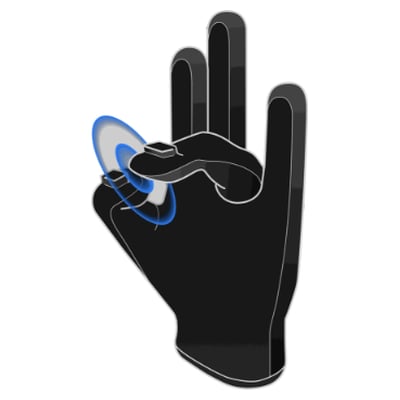 | Thumb-Ring Tip Touch | Thumb–ring EMF distance < 5 cm, with the fingertips facing each other at an angle > 100° (tip-to-tip, not pad-to-pad) | Touch only the thumb and ring fingertips. Do not press the finger pads together. |
| 4 | 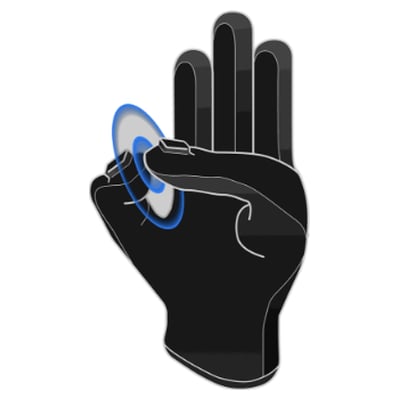 | Thumb-Pinky Tip Touch | Thumb–pinky EMF distance < 5 cm, with the fingertips facing each other at an angle > 100° (tip-to-tip, not pad-to-pad) | Touch only the thumb and pinky fingertips. Do not press the finger pads together. |
| 5 | 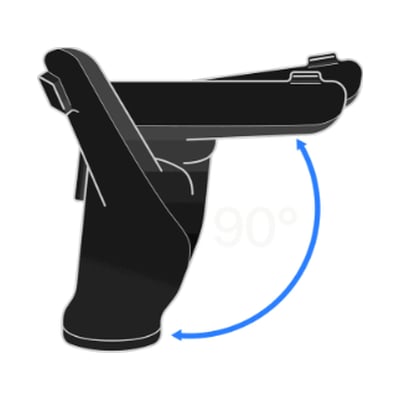 | Four-Finger Bend 90° | Index / middle / ring / pinky angles close to the target pose (thumb not constrained) | Bend the index, middle, ring, and pinky fingers together to about 90°—like a half-fist, not clenched, the thumb stays relaxed |
| 6 | 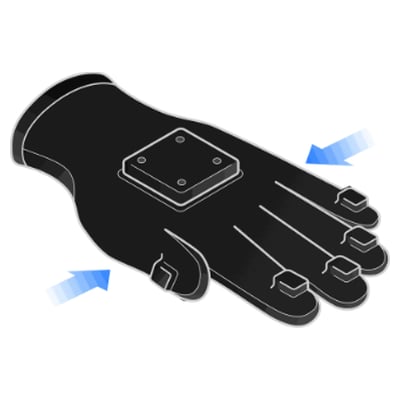 | Flat Open | Index / middle / ring / pinky angles close to the target pose (thumb not constrained) | Open the hand fully with all four fingers extended and close together, palm steady, the thumb stays relaxed |
Calibration Complete
After all 6 steps finish, the completion page appears with a confirmation message and three actions: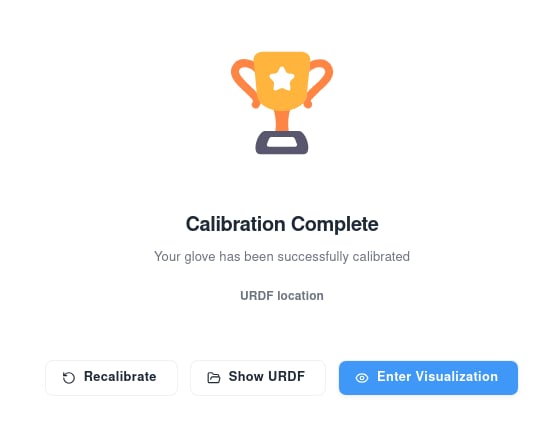
Under a named profile, calibration data is saved automatically and persists across Studio restarts. That hand’s profile in the Calibration Profiles sidebar changes to Calibrated. Switch to another glove on the same side and the status stays Calibrated—no need to calibrate again.
URDF Output Location
The generated URDF is saved per Studio user profile and per hand:Default profile doesn’t store calibration results. To calibrate, create and switch to your own named profile first. See Basic Settings > User Profile for how to create one.
Debug Recording
When calibration starts, Studio automatically begins a recording namedCalibration Debug that captures the current device’s poses, transforms, IK, fingertip, and IMU data, excluding tactile streams. The recording stops automatically when calibration ends, whether it succeeds or fails.
Files save to the same directory as regular recordings—by default <Documents>/WujiStudio/recordings/, configurable in Studio settings. If calibration keeps failing, send the matching file along with the device SN to [email protected].
When to RecalibrateRecalibrate in these cases:
- The device was dropped or took a hard impact
- The device hasn’t been used for a long time (we recommend checking every 3 months)
- Data looks clearly off (joint angles outside the normal range, fingers don’t respond)
- After repair or part replacement
Improve Pinch Accuracy During TeleoperationCalibration results vary with hand shape and wearing habits. Some users may notice imprecise pinching during teleoperation. Adjusting your technique helps:
- Touch fingertip to fingertip instead of pressing the finger pads together
- If the dexterous hand still can’t complete the pinch, offset your two fingers slightly and try again