> ## Documentation Index
> Fetch the complete documentation index at: https://docs.wuji.tech/llms.txt
> Use this file to discover all available pages before exploring further.

# Data Recording

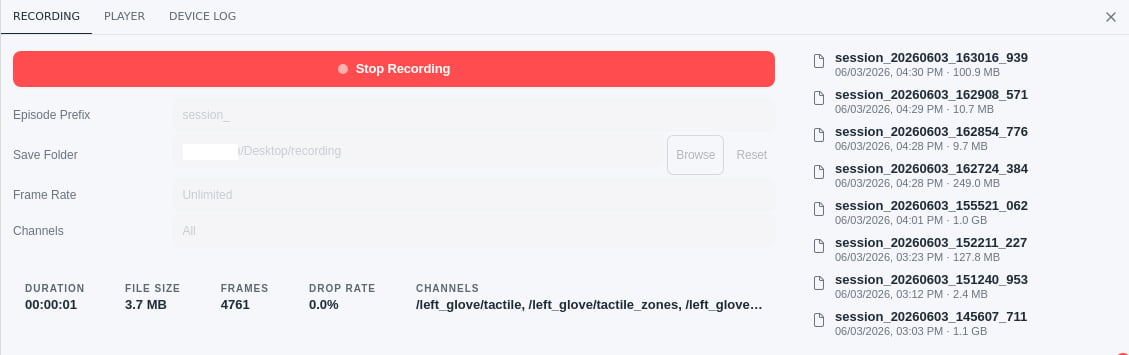
On the [Visualization](/en/docs/wuji-studio/visualization) page, click the **Show bottom bar** icon <svg width="1.2em" height="1.2em" viewBox="0 0 16 16" fill="currentColor" style={{verticalAlign: 'middle', display: 'inline'}}><path d="M12.5 1H3.5C2.122 1 1 2.121 1 3.5V12.5C1 13.879 2.122 15 3.5 15H12.5C13.878 15 15 13.879 15 12.5V3.5C15 2.121 13.878 1 12.5 1ZM14 12.5C14 13.327 13.327 14 12.5 14H3.5C2.673 14 2 13.327 2 12.5V11H14V12.5ZM14 10H2V3.5C2 2.673 2.673 2 3.5 2H12.5C13.327 2 14 2.673 14 3.5V10Z" /></svg> in the top-right corner to expand the Bottom bar, then switch to the **RECORDING** tab to record all subscribed Topics as [MCAP](https://mcap.dev/) files for offline playback and analysis.

<img src="https://mintcdn.com/wuji-0bbde051/GsT0bEnPZ_18e5HL/assets/source/images/en/wuji-studio/recording.png?fit=max&auto=format&n=GsT0bEnPZ_18e5HL&q=85&s=ee879958da17446e057854a8876a11d1" alt="Data Recording" width="1438" height="898" data-path="assets/source/images/en/wuji-studio/recording.png" />

## Start and Stop Recording

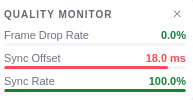
<img src="https://mintcdn.com/wuji-0bbde051/GsT0bEnPZ_18e5HL/assets/source/images/en/wuji-studio/recording-panel.png?fit=max&auto=format&n=GsT0bEnPZ_18e5HL&q=85&s=fc442a4d25209b7b57fb4115309daf9d" alt="Recording panel" width="1129" height="355" data-path="assets/source/images/en/wuji-studio/recording-panel.png" />

<table>
  <thead>
    <tr><th>Area</th><th>Element</th><th>Description</th></tr>
  </thead>

  <tbody>
    <tr>
      <td rowSpan={5} style={{whiteSpace: "nowrap"}}>Controls</td>
      <td><strong>Start Recording</strong> / <strong>Stop Recording</strong></td>
      <td>Recording button. Shows <strong>Start Recording</strong> when idle (select to begin), <strong>Stop Recording</strong> while recording (select to stop). Dims briefly as the file writes</td>
    </tr>

    <tr><td><strong>Episode Prefix</strong></td><td>Filename prefix, default <code>session\_</code></td></tr>
    <tr><td><strong>Save Folder</strong></td><td>Save directory. <strong>Browse</strong> to choose a custom folder, <strong>Reset</strong> to restore the default. Shows <strong>Default</strong> when unset. See <a href="#file-storage">File Storage</a></td></tr>
    <tr><td><strong>Frame Rate</strong></td><td>Recording frame rate, fixed at <strong>Unlimited</strong></td></tr>
    <tr><td><strong>Channels</strong></td><td>Channels to record, fixed at <strong>All</strong></td></tr>

    <tr>
      <td rowSpan={5} style={{whiteSpace: "nowrap"}}>Status</td>
      <td><strong>DURATION</strong></td>
      <td>Elapsed time, <code>HH:MM:SS</code> format (shown live while recording)</td>
    </tr>

    <tr><td><strong>FILE SIZE</strong></td><td>Current file size (B / KB / MB / GB)</td></tr>
    <tr><td><strong>FRAMES</strong></td><td>Total frames recorded</td></tr>
    <tr><td><strong>DROP RATE</strong></td><td>Data frame drop percentage</td></tr>
    <tr><td><strong>CHANNELS</strong></td><td>Active recording channels</td></tr>

    <tr>
      <td style={{whiteSpace: "nowrap"}}>Episodes</td>
      <td><strong>Episodes</strong></td>
      <td>Lists saved MCAP files on the right of the panel, newest first, each with filename, creation time, and size. Click an entry to open the containing folder in your file manager</td>
    </tr>
  </tbody>
</table>

**Episode Prefix** and **Save Folder** can be changed before recording and lock while recording. When no device is connected, the recording button is disabled and the panel shows **No device connected**. Select **Go to Connect** to open the [Device Management](/en/docs/wuji-studio/device-connection) view.

<Info>
  Connect a device before recording. If a device disconnects during recording, the session stops
  automatically and the file is saved.
</Info>

<Warning>
  If the default save folder doesn't exist, starting a recording fails with **Recording error:
  Failed to start recording**. Select **Browse** to choose a valid folder.
</Warning>

## Quality Monitor

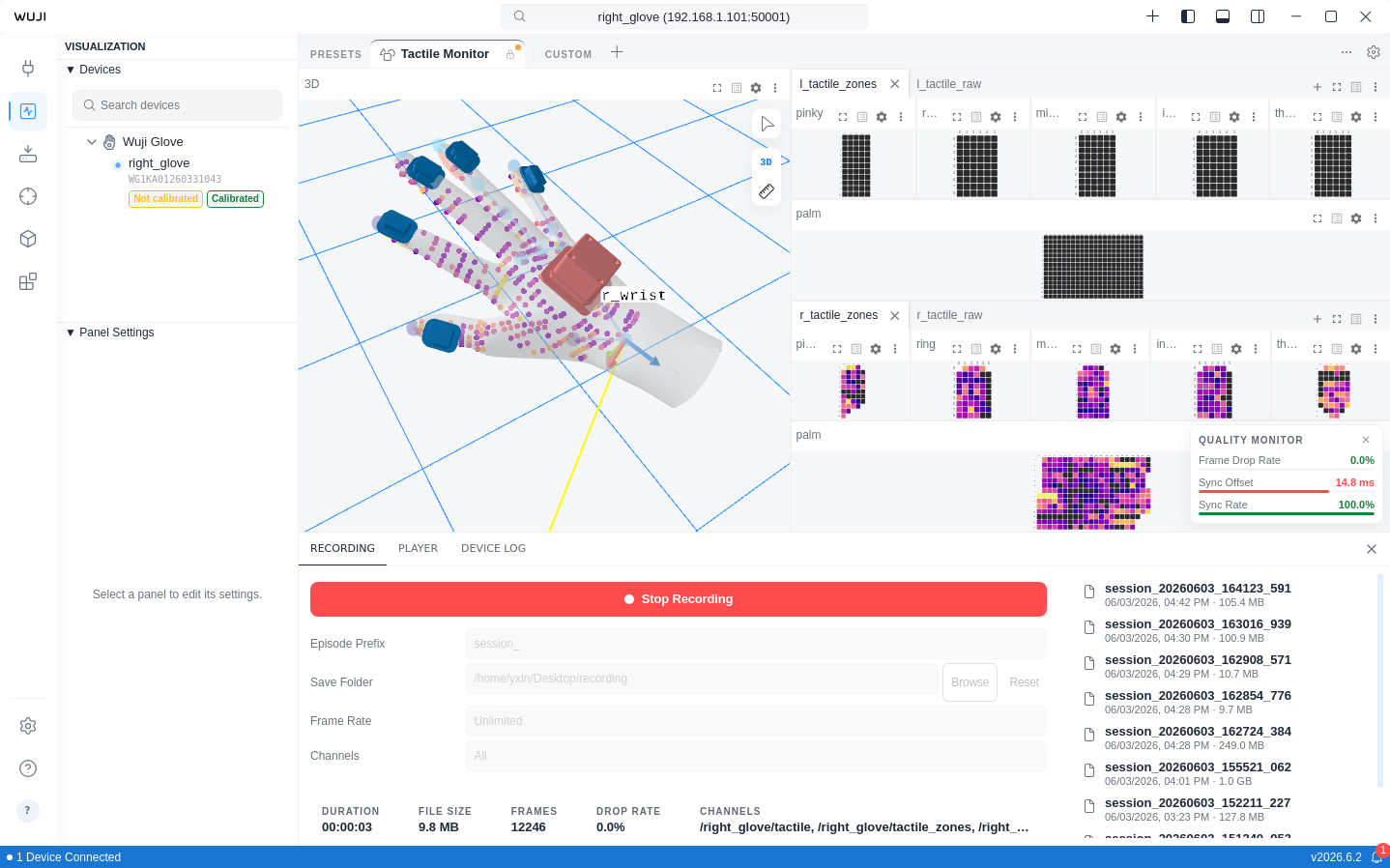
The **QUALITY MONITOR** panel appears in the bottom-right corner of the Visualization View during recording, displaying three quality metrics:

<img src="https://mintcdn.com/wuji-0bbde051/GsT0bEnPZ_18e5HL/assets/source/images/en/wuji-studio/quality-monitor.png?fit=max&auto=format&n=GsT0bEnPZ_18e5HL&q=85&s=90b96d2c89d24dcb9121ae0f98236865" alt="Quality Monitor" width="193" height="100" data-path="assets/source/images/en/wuji-studio/quality-monitor.png" />

| Metric | Good | Warning | Bad |
| - | - | - | - |
| **Frame Drop Rate** | \< 2% | 2%–5% | ≥ 5% |
| **Sync Offset** | \< 5 ms | 5–10 ms | ≥ 10 ms |
| **Sync Rate** | ≥ 95% | 90%–95% | \< 90% |

Each metric shows a color-coded indicator: green for Good, yellow for Warning, red for Bad. When a metric exceeds its threshold, a warning notification appears.

## File Storage

Recorded files are saved by default to:

```
Documents/WujiStudio/recordings/
```

Filename format: `{prefix}{YYYYMMDD}_{HHMMSS}_{milliseconds}.mcap`

For example, with the default prefix `session_`:

```
session_20250316_143025_123.mcap
```

Before recording, adjust two save settings in the **RECORDING** panel (locked while recording):

* **Filename prefix**: change **Episode Prefix**
* **Save folder**: select **Browse** next to **Save Folder** to choose a custom directory, or **Reset** to restore the default. When unset, the field shows **Default**, and files go to the default path above

## Data Playback

Open a local MCAP recording and replay it in the visualization panels to analyze captured data frame by frame.

### Open a Recording

1. In the Bottom bar, select the **PLAYER** tab
2. Select **Open File** (folder icon)
3. In the dialog, find the `.mcap` file to replay
4. Select **Open**
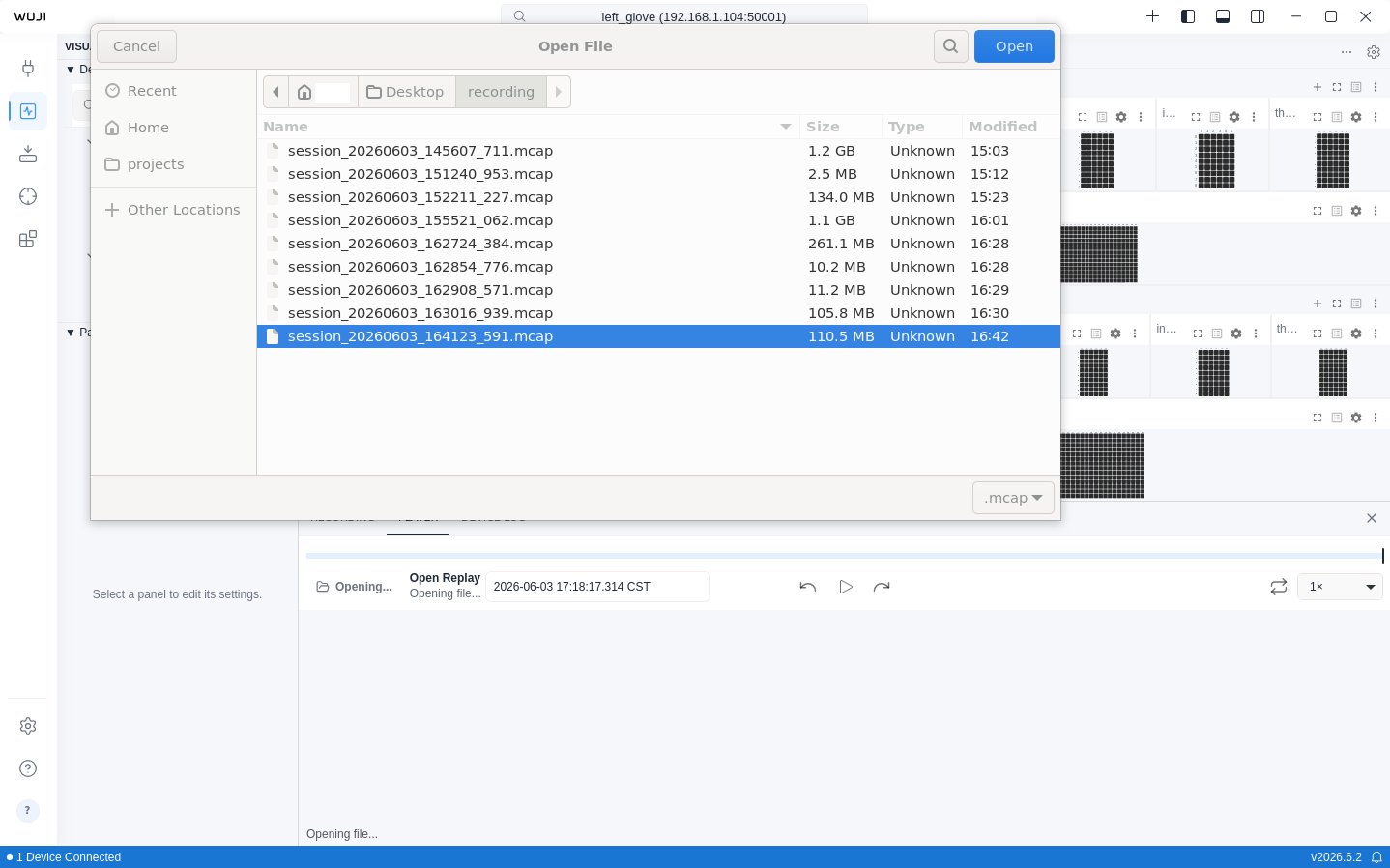
<img src="https://mintcdn.com/wuji-0bbde051/GsT0bEnPZ_18e5HL/assets/source/images/en/wuji-studio/open-replay.png?fit=max&auto=format&n=GsT0bEnPZ_18e5HL&q=85&s=4b3fb08554ce1e0d150780738b916db4" alt="Open a recording" width="1438" height="898" data-path="assets/source/images/en/wuji-studio/open-replay.png" />

Replay one MCAP file at a time. Opening a file does not start playback automatically—select **Play** <svg width="1.2em" height="1.2em" viewBox="0 0 24 24" fill="none" stroke="currentColor" strokeWidth="2" strokeLinecap="round" strokeLinejoin="round" style={{verticalAlign: 'middle', display: 'inline'}}><polygon points="6 3 20 12 6 21 6 3" /></svg> to begin.

<Info>
  During replay, the 3D panel is taken over by the replay and is temporarily unavailable for live data.
</Info>

<Warning>
  The Wuji Glove tactile matrix changed from 24×32 to 24×31. When you replay tactile MCAP recordings captured before the change, Studio rejects the tactile data and shows an alert instead of rendering at the wrong dimensions. To replay historical tactile recordings, use an earlier Studio version.
</Warning>

### Playback Controls

The control bar at the bottom provides replay controls:

| Control | Description |
| - | - |
| **Play / Pause** | Start or pause replay. Shortcut: `Space` |
| **Timeline** | Drag the scrubber to jump to any moment |
| **Step back / forward** | Move one frame back or ahead. Shortcuts: `←` / `→` |
| **Loop** | Restart from the beginning when replay reaches the end |
| **Playback speed** | Select from 0.01× to 5× across 11 steps. Default is 1× |

The current time and total length appear as "current / total". Click the current time to enter a target moment and jump precisely.


This documentation is built and hosted on [Mintlify](https://mintlify.com), a developer documentation platform.