

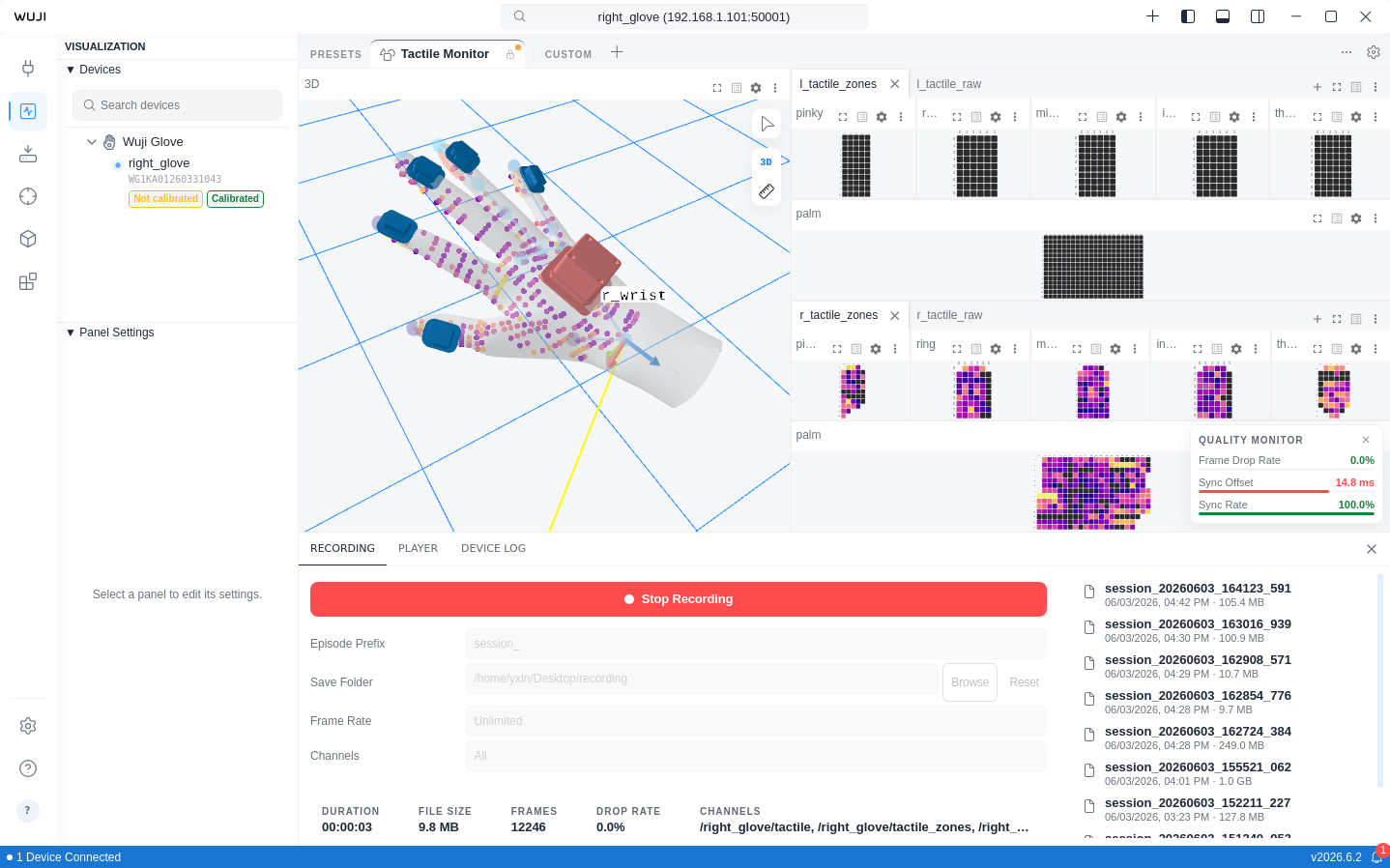
Start and Stop Recording
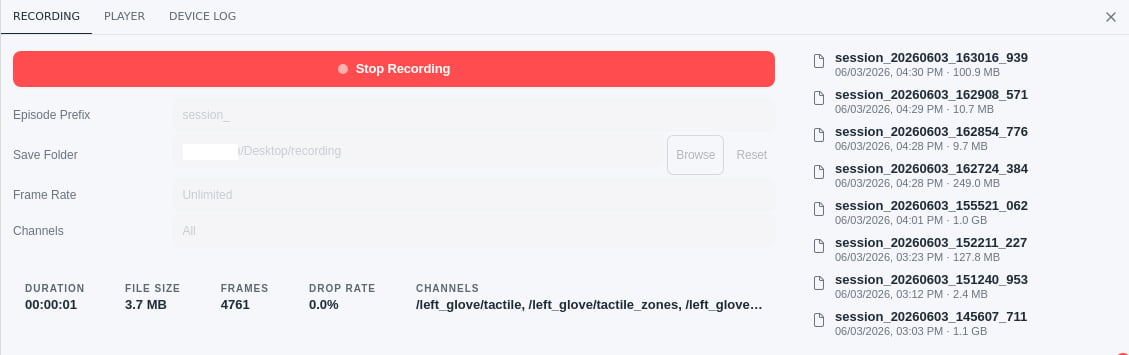
| Area | Element | Description |
|---|---|---|
| Controls | Start Recording / Stop Recording | Recording button. Shows Start Recording when idle (select to begin), Stop Recording while recording (select to stop). Dims briefly as the file writes |
| Episode Prefix | Filename prefix, default session_ | |
| Save Folder | Save directory. Browse to choose a custom folder, Reset to restore the default. Shows Default when unset. See File Storage | |
| Frame Rate | Recording frame rate, fixed at Unlimited | |
| Channels | Channels to record, fixed at All | |
| Status | DURATION | Elapsed time, HH:MM:SS format (shown live while recording) |
| FILE SIZE | Current file size (B / KB / MB / GB) | |
| FRAMES | Total frames recorded | |
| DROP RATE | Data frame drop percentage | |
| CHANNELS | Active recording channels | |
| Episodes | Episodes | Lists saved MCAP files on the right of the panel, newest first, each with filename, creation time, and size. Click an entry to open the containing folder in your file manager |
Connect a device before recording. If a device disconnects during recording, the session stops
automatically and the file is saved.
Quality Monitor
The QUALITY MONITOR panel appears in the bottom-right corner of the Visualization View during recording, displaying three quality metrics: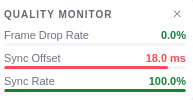
Each metric shows a color-coded indicator: green for Good, yellow for Warning, red for Bad. When a metric exceeds its threshold, a warning notification appears.
File Storage
Recorded files are saved by default to:{prefix}{YYYYMMDD}_{HHMMSS}_{milliseconds}.mcap
For example, with the default prefix session_:
- Filename prefix: change Episode Prefix
- Save folder: select Browse next to Save Folder to choose a custom directory, or Reset to restore the default. When unset, the field shows Default, and files go to the default path above
Data Playback
Open a local MCAP recording and replay it in the visualization panels to analyze captured data frame by frame.Open a Recording
- In the Bottom bar, select the PLAYER tab
- Select Open File (folder icon)
- In the dialog, find the
.mcapfile to replay - Select Open
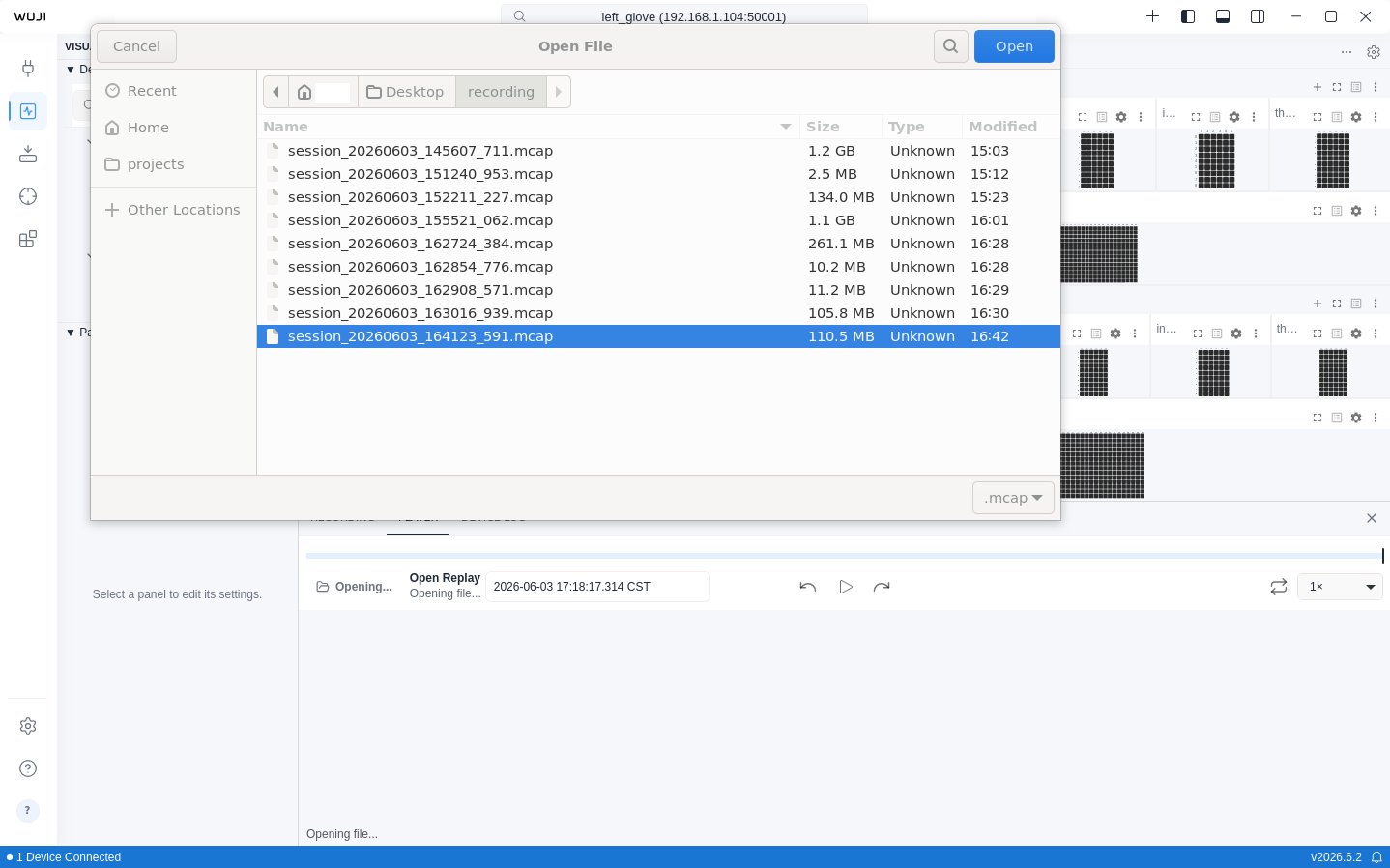
During replay, the 3D panel is taken over by the replay and is temporarily unavailable for live data.
Playback Controls
The control bar at the bottom provides replay controls:
The current time and total length appear as “current / total”. Click the current time to enter a target moment and jump precisely.