> ## Documentation Index
> Fetch the complete documentation index at: https://docs.wuji.tech/llms.txt
> Use this file to discover all available pages before exploring further.
# Download and Installation
## System Requirements
| Item | Requirement |
| - | - |
| OS | Ubuntu 22.04 LTS or later |
| Architecture | x86\_64 (amd64) or ARM64 (aarch64) |
| Network | Ethernet (same subnet as Wuji device) |
## Installation Steps
Before use, complete the Wuji Glove hardware connection and network configuration. See [Getting
Started](/en/docs/wuji-glove/getting-started) for details.
1. Visit the [GitHub Releases](https://github.com/wuji-technology/wuji-studio/releases) page and download the Ubuntu installation package (`.deb`) for your architecture: amd64 (x86\_64) for standard PCs, arm64 (aarch64) for ARM devices such as Jetson and RK3588/3576.
2. Run the installer:
```bash theme={null}
# amd64 (x86_64)
sudo apt install ./wuji-studio__amd64.deb
# arm64 (aarch64)
sudo apt install ./wuji-studio__arm64.deb
```
After installation, click the desktop icon or run `wuji-studio` in the terminal to launch the application. The following interface shows a successful setup:
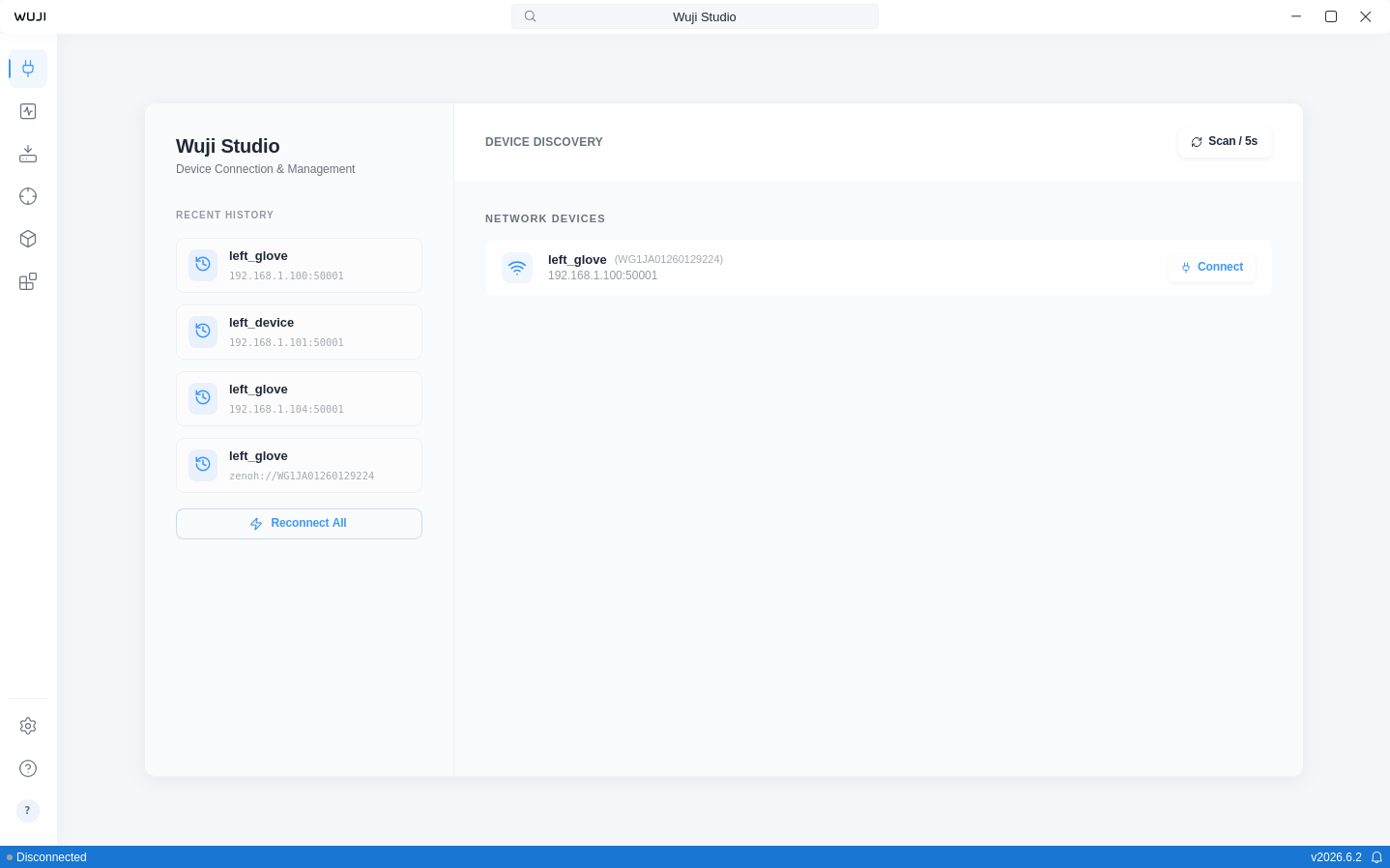 3. Click the **Connect** button on a device card. The app automatically detects left- or right-hand information from the device SN and generates a default name (e.g. `left_glove`, `right_glove`).
## Updating Studio
Studio checks for new versions automatically and shows an update notification — installing is always your explicit action. **Update now** in the notification starts the update directly (step 2 below). Click the version number in the status bar to open **Settings > About**, where you check for updates and install specific versions:
1. The **Version Update** area shows the current version. Click the refresh button to check for updates. You'll see **Up to date.** when current, or **New version available v…** — click it to start the update.
2. A global progress overlay (**Updating, please do not turn off.**) covers the whole update — download, verification, and installation — and can't be dismissed while it's running. After download and verification, a system authentication prompt appears, and installation starts automatically after you authenticate. If you cancel the prompt, click **Install** to install again without re-downloading.
3. When installation completes, click **Restart to apply**. Before restarting, Studio finishes any recording in progress, and a running firmware upgrade blocks the restart until it completes.
**Install a specific version**: click **Install a specific version** to open the version history dialog and expand the release notes of each version, five per page. Versions with an install button install directly, and versions without a verifiable package are marked **Manual download only**. Installing a version older than the current one asks for confirmation — your recordings and data are kept.
Every update is verified against the official signature before installing — packages that can't be verified as an official release are refused. In-app updates require Studio to be installed from a `.deb` with pkexec authorization available. Otherwise the **About** page shows **In-app updates are not available in this environment.** — download and install a `.deb` manually as described above. Studio detects the external install and prompts you to restart.
This documentation is built and hosted on [Mintlify](https://mintlify.com), a developer documentation platform.
3. Click the **Connect** button on a device card. The app automatically detects left- or right-hand information from the device SN and generates a default name (e.g. `left_glove`, `right_glove`).
## Updating Studio
Studio checks for new versions automatically and shows an update notification — installing is always your explicit action. **Update now** in the notification starts the update directly (step 2 below). Click the version number in the status bar to open **Settings > About**, where you check for updates and install specific versions:
1. The **Version Update** area shows the current version. Click the refresh button to check for updates. You'll see **Up to date.** when current, or **New version available v…** — click it to start the update.
2. A global progress overlay (**Updating, please do not turn off.**) covers the whole update — download, verification, and installation — and can't be dismissed while it's running. After download and verification, a system authentication prompt appears, and installation starts automatically after you authenticate. If you cancel the prompt, click **Install** to install again without re-downloading.
3. When installation completes, click **Restart to apply**. Before restarting, Studio finishes any recording in progress, and a running firmware upgrade blocks the restart until it completes.
**Install a specific version**: click **Install a specific version** to open the version history dialog and expand the release notes of each version, five per page. Versions with an install button install directly, and versions without a verifiable package are marked **Manual download only**. Installing a version older than the current one asks for confirmation — your recordings and data are kept.
Every update is verified against the official signature before installing — packages that can't be verified as an official release are refused. In-app updates require Studio to be installed from a `.deb` with pkexec authorization available. Otherwise the **About** page shows **In-app updates are not available in this environment.** — download and install a `.deb` manually as described above. Studio detects the external install and prompts you to restart.
This documentation is built and hosted on [Mintlify](https://mintlify.com), a developer documentation platform.