

Algorithm Principles
Optimization Formula The system usesAdaptiveOptimizerAnalytical optimizer with Huber loss + hand-written analytical gradients + NLopt SLSQP:
Where is the joint angles from the previous frame, and is norm_delta (velocity regularization weight).
Adaptive Blending
The algorithm automatically switches optimization strategies based on finger pinch state:
- : Distance from the thumb to the tip of finger
- , : Pinch thresholds (default: 2.0 cm, 4.0 cm)
Troubleshooting
Q: pinocchio installation fails? If installing from a PyPI mirror fails, use the official source. Note: The package name on PyPI ispin (not pinocchio):
mjpython instead of python to run simulation scripts on macOS:
mediapipe or opencv-python is missing?
Install the video dependencies:
mediapipe and opencv-python packages required for video mode.
Q: RealSense mode cannot start or reports that pyrealsense2 is missing?
Install the RealSense extra dependencies:
device is busy?
This usually means the camera is already being used by another tool or process. Close the other application and try again.
Q: --show-video causes lag?
--show-video is intended for debugging and adds extra rendering overhead. Disable it when you care more about runtime performance than visual inspection.
Custom Input Devices
Want to integrate your own hand input device — a glove, XR headset, or mocap system? Convert your device data into the unified 21-point hand keypoint format, and the retargeting, simulation, and real-hardware pipelines all reuse without change. No algorithm edits needed.The Input Interface
Every input device implements one method:- Return an all-zero array
np.zeros((21, 3))when a hand is unavailable. - Order the 21 points to match the MediaPipe hand landmark definition (see the table below).
- Use the wrist (point 0) as the coordinate origin.
teleop_sim.py, teleop_real.py, and tuning_tool.py all reuse directly.
Integration Steps
- Create the device class. Add
my_device.pyunderexample/input_devices/, subclassInputDeviceBase, and implementget_fingers_data(). Referencevisionpro.py(live TCP),mediapipe_replay.py(pkl replay), orvideo_mediapipe.py(video plus MediaPipe). - Register the device. Add
"my_device": lambda: MyDevice(...)to thedevice_mapin bothteleop_sim.pyandteleop_real.py, and add"my_device"to the--inputchoices. Keep both files consistent. - Prepare a config. Copy an existing YAML (such as
config/adaptive_analytical_avp.yaml) and adjustmediapipe_rotation,segment_scaling,lp_alpha,norm_delta, andpinch_thresholdsfor your device.
Debugging Order
Follow the stages in order — don’t skip ahead:- Record a pkl sample first, before connecting a live stream. A recorded sample makes problems reproducible and separates data issues from algorithm issues.
- Inspect the skeleton overlay with
tuning_tool.py --play. Confirm the pose is correct, the left and right hands aren’t swapped, and the three skeleton layers track each other.
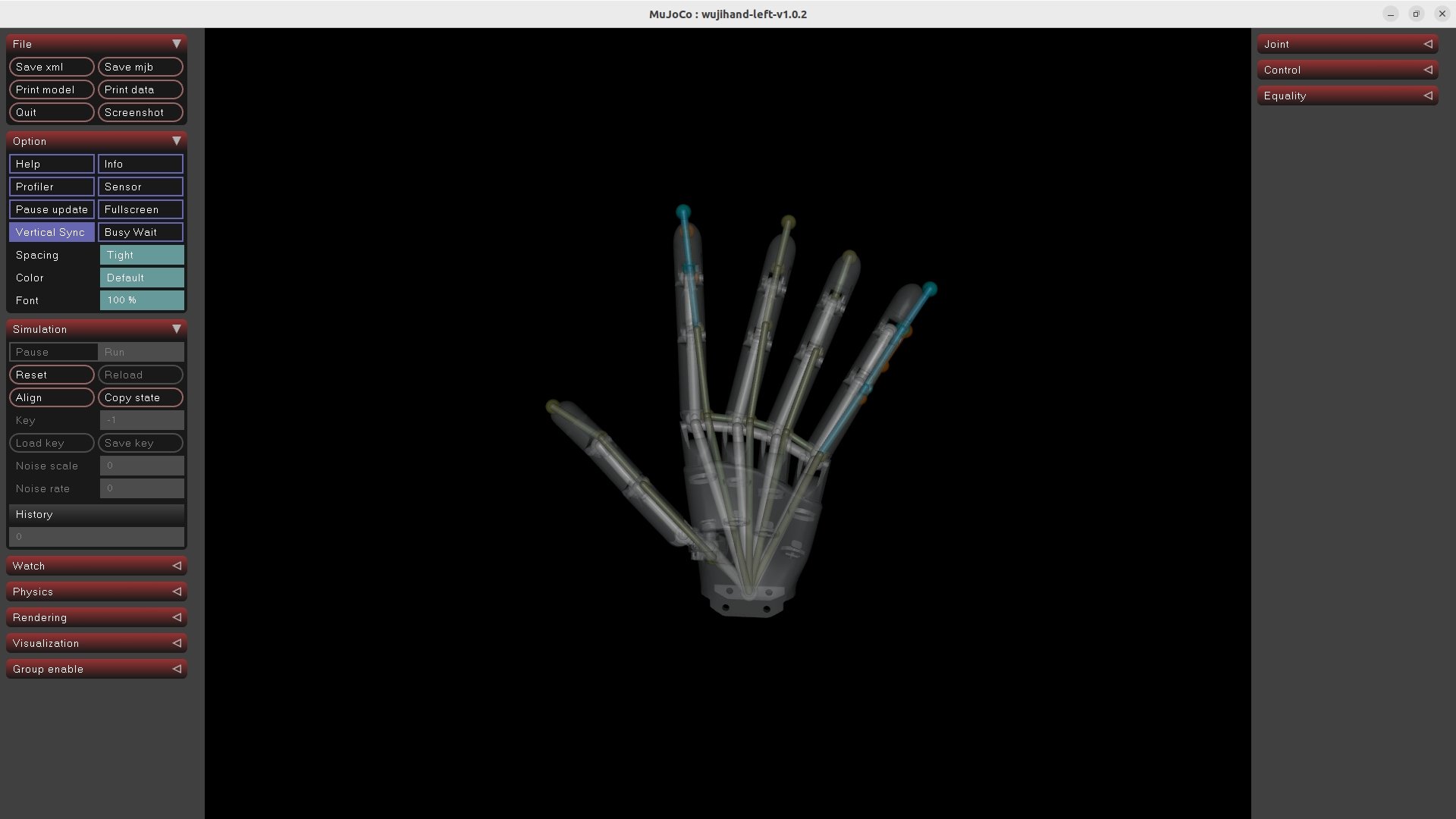
- Run the MuJoCo simulation with
teleop_sim.py --play. Verify the motion is smooth and holds up at extreme poses. - Connect the live stream and real hardware last, after the simulation passes.
MediaPipe 21-Point Order
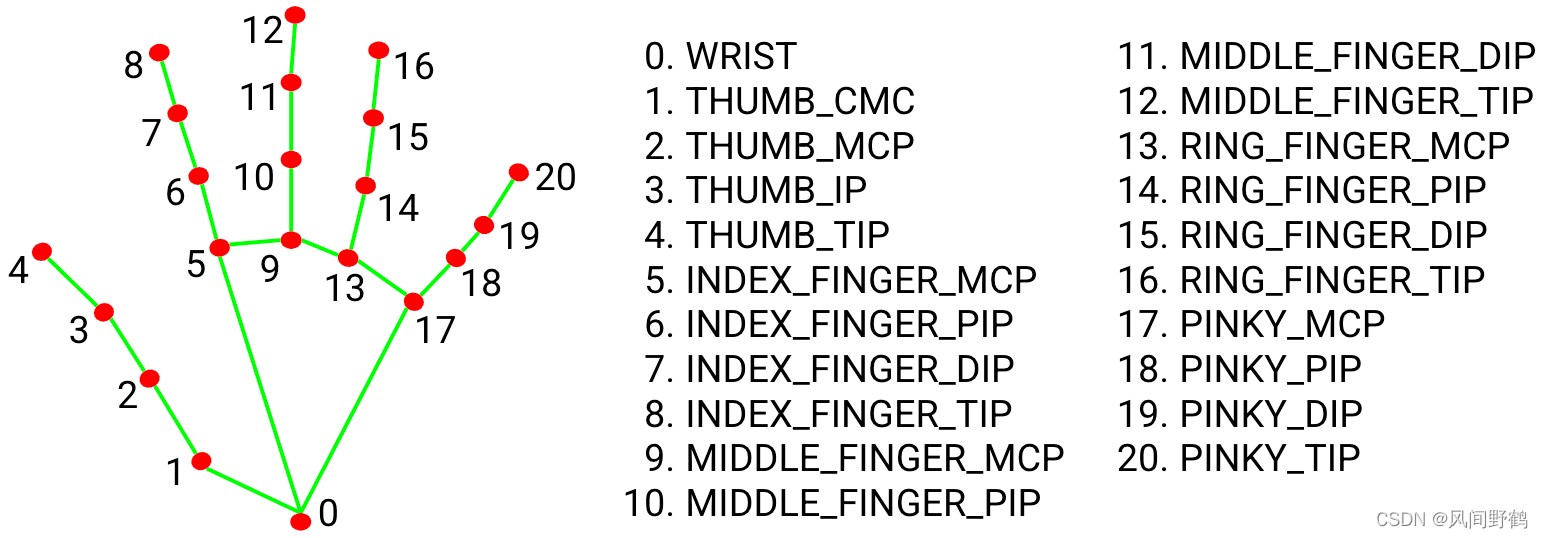
_convert():
Related Resources
- GitHub Repository: wuji-technology/wuji-retargeting
- Wuji Hand SDK: wuji-technology/wujihandpy
- Vision Pro Streaming: VisionProTeleop
- Technical Support: [email protected]