> ## Documentation Index
> Fetch the complete documentation index at: https://docs.wuji.tech/llms.txt
> Use this file to discover all available pages before exploring further.
# 下载与安装
## 系统要求
| 项目 | 要求 |
| - | - |
| 操作系统 | Ubuntu 22.04 LTS 及以上版本 |
| 架构 | x86\_64 (amd64) 或 ARM64 (aarch64) |
| 网络 | 以太网(与 Wuji 设备同一网段) |
## 安装步骤
使用前需完成 Wuji Glove 硬件连接与网络配置,详见
[使用前准备](/docs/wuji-glove/getting-started)。
1. 访问 [GitHub Releases](https://github.com/wuji-technology/wuji-studio/releases) 页面,按设备架构下载对应的 Ubuntu 安装包(`.deb`):amd64 (x86\_64) 用于常规 PC,arm64 (aarch64) 用于 Jetson、RK3588/3576 等 ARM 设备。
2. 运行安装程序:
```bash theme={null}
# amd64 (x86_64)
sudo apt install ./wuji-studio__amd64.deb
# arm64 (aarch64)
sudo apt install ./wuji-studio__arm64.deb
```
安装完成后,点击图标或在终端执行 `wuji-studio` 启动应用,看到以下界面说明安装成功。
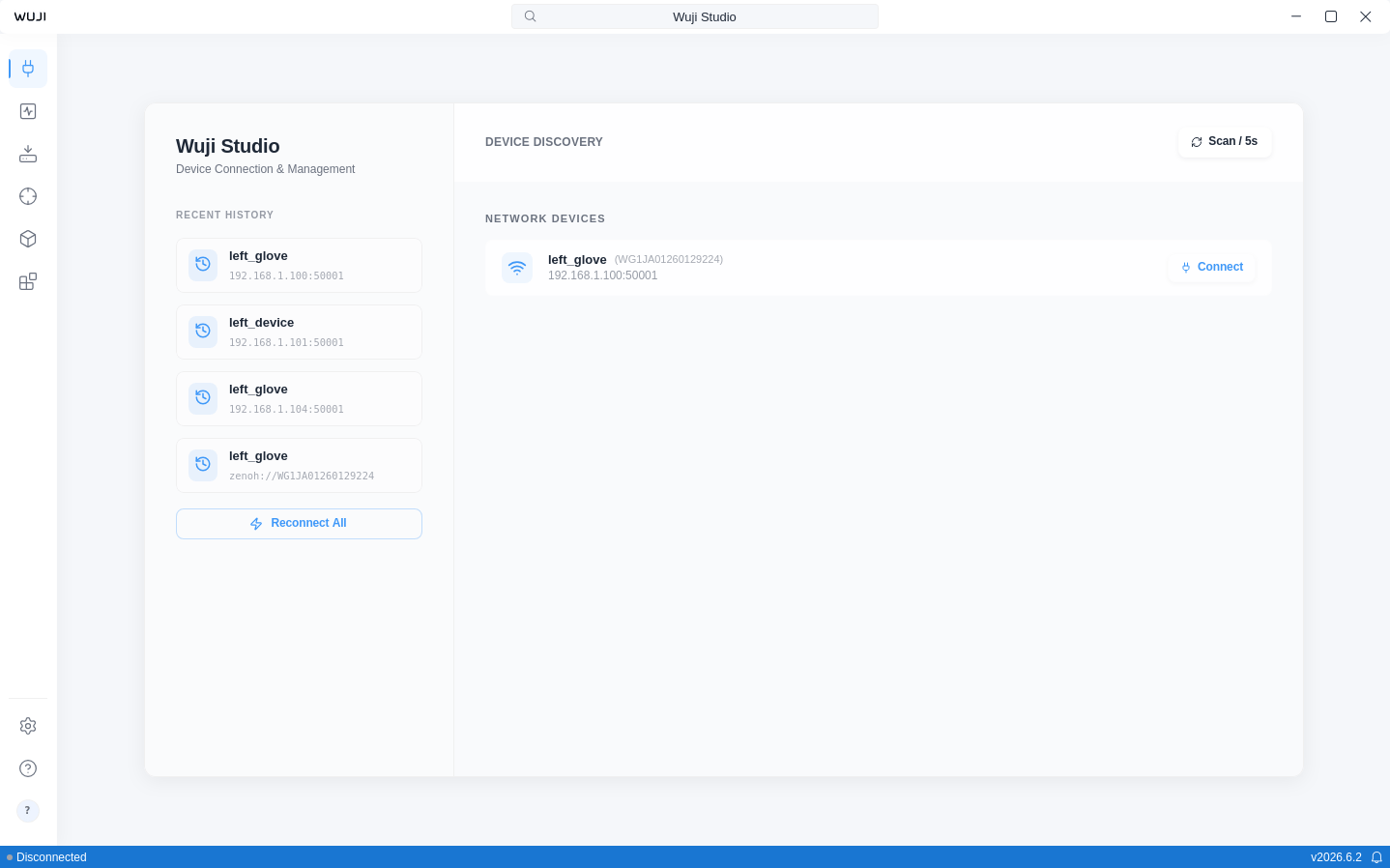 3. 点击设备卡片上的 **Connect** 按钮。应用根据设备 SN 自动检测左右手信息并生成默认名称(如 `left_glove`、`right_glove`)。
## 更新 Studio
Studio 自动检查新版本并弹出更新通知,安装需显式触发。通知中的 **Update now** 直接开始更新(进入下方第 2 步)。点击状态栏的版本号进入 **Settings > About**,可手动检查更新与安装指定版本:
1. **Version Update** 区显示当前版本,点击刷新按钮检查更新。已是最新时显示 **Up to date.**,有新版本时显示 **New version available v…**,点击即开始更新。
2. 全局进度遮罩(**Updating, please do not turn off.**)覆盖下载、校验与安装全程,进行中无法关闭。下载与校验完成后弹出系统授权框,完成认证后自动安装。取消授权后可点击 **Install** 重新安装,无需重新下载。
3. 安装完成后点击 **Restart to apply** 重启生效。重启前 Studio 会先完成正在进行的录制,设备固件升级进行中时会阻止重启。
**安装指定版本**:点击 **Install a specific version** 打开版本历史弹窗,逐版本展开更新说明,每页 5 个版本。带安装按钮的版本可直接安装,缺少可校验安装包的版本标记为 **Manual download only**,需手动下载。安装比当前旧的版本需二次确认,录制与数据保留。
每次更新安装前都会校验官方签名,无法验证为官方发布的安装包会拒绝安装。应用内更新需要 Studio 通过 `.deb` 安装且系统提供 pkexec 授权,不满足时 **About** 页提示 **In-app updates are not available in this environment.**,按上文步骤手动下载并安装 `.deb` 更新即可。Studio 检测到外部安装的新版本后会提示重启。
This documentation is built and hosted on [Mintlify](https://mintlify.com), a developer documentation platform.
3. 点击设备卡片上的 **Connect** 按钮。应用根据设备 SN 自动检测左右手信息并生成默认名称(如 `left_glove`、`right_glove`)。
## 更新 Studio
Studio 自动检查新版本并弹出更新通知,安装需显式触发。通知中的 **Update now** 直接开始更新(进入下方第 2 步)。点击状态栏的版本号进入 **Settings > About**,可手动检查更新与安装指定版本:
1. **Version Update** 区显示当前版本,点击刷新按钮检查更新。已是最新时显示 **Up to date.**,有新版本时显示 **New version available v…**,点击即开始更新。
2. 全局进度遮罩(**Updating, please do not turn off.**)覆盖下载、校验与安装全程,进行中无法关闭。下载与校验完成后弹出系统授权框,完成认证后自动安装。取消授权后可点击 **Install** 重新安装,无需重新下载。
3. 安装完成后点击 **Restart to apply** 重启生效。重启前 Studio 会先完成正在进行的录制,设备固件升级进行中时会阻止重启。
**安装指定版本**:点击 **Install a specific version** 打开版本历史弹窗,逐版本展开更新说明,每页 5 个版本。带安装按钮的版本可直接安装,缺少可校验安装包的版本标记为 **Manual download only**,需手动下载。安装比当前旧的版本需二次确认,录制与数据保留。
每次更新安装前都会校验官方签名,无法验证为官方发布的安装包会拒绝安装。应用内更新需要 Studio 通过 `.deb` 安装且系统提供 pkexec 授权,不满足时 **About** 页提示 **In-app updates are not available in this environment.**,按上文步骤手动下载并安装 `.deb` 更新即可。Studio 检测到外部安装的新版本后会提示重启。
This documentation is built and hosted on [Mintlify](https://mintlify.com), a developer documentation platform.