> ## Documentation Index
> Fetch the complete documentation index at: https://docs.wuji.tech/llms.txt
> Use this file to discover all available pages before exploring further.
# 连接设备
### 启动软件
启动软件前,请先确认灵巧手处于断电状态。
**方式一**:在应用程序菜单中搜索 `wujihand-upgrader`,点击图标启动
**方式二**:在终端运行命令
```bash theme={null}
wujihand-upgrader
```
启动后主界面如下:
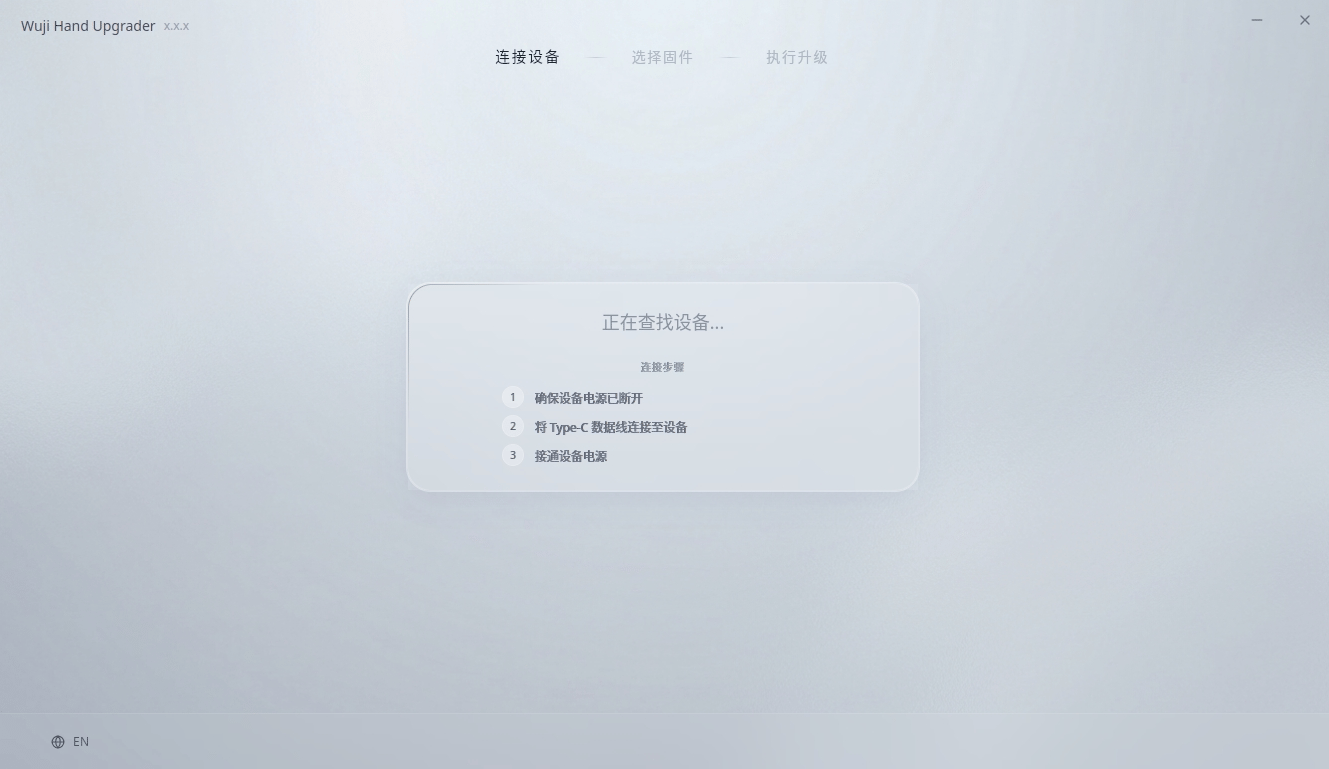 首次启动可能较慢,需要等待应用解压和初始化完成。
### 硬件连接
保持灵巧手断电,使用包装中的 USB A to USB C 线束将灵巧手连接到计算机,然后给灵巧手上电。
### 自动连接
灵巧手上电后,软件会自动开始扫描设备,并连接到 Bootloader,等待连接建立。
设备必须在 Bootloader 模式下才能进行固件升级。若软件提示设备未处于 Bootloader 模式,请保持 USB 连接,将设备断电后重新上电,然后重试。
### 设备信息显示
连接成功后,界面显示以下设备信息:
* 串口:设备连接的串口路径(如 /dev/ttyUSB\*)
* 系统版本:当前设备的系统版本
* 节点状态:在线节点数/总节点数(悬停在信息图标上可查看详细的节点版本信息)
* 状态:设备当前状态(如就绪)
首次启动可能较慢,需要等待应用解压和初始化完成。
### 硬件连接
保持灵巧手断电,使用包装中的 USB A to USB C 线束将灵巧手连接到计算机,然后给灵巧手上电。
### 自动连接
灵巧手上电后,软件会自动开始扫描设备,并连接到 Bootloader,等待连接建立。
设备必须在 Bootloader 模式下才能进行固件升级。若软件提示设备未处于 Bootloader 模式,请保持 USB 连接,将设备断电后重新上电,然后重试。
### 设备信息显示
连接成功后,界面显示以下设备信息:
* 串口:设备连接的串口路径(如 /dev/ttyUSB\*)
* 系统版本:当前设备的系统版本
* 节点状态:在线节点数/总节点数(悬停在信息图标上可查看详细的节点版本信息)
* 状态:设备当前状态(如就绪)
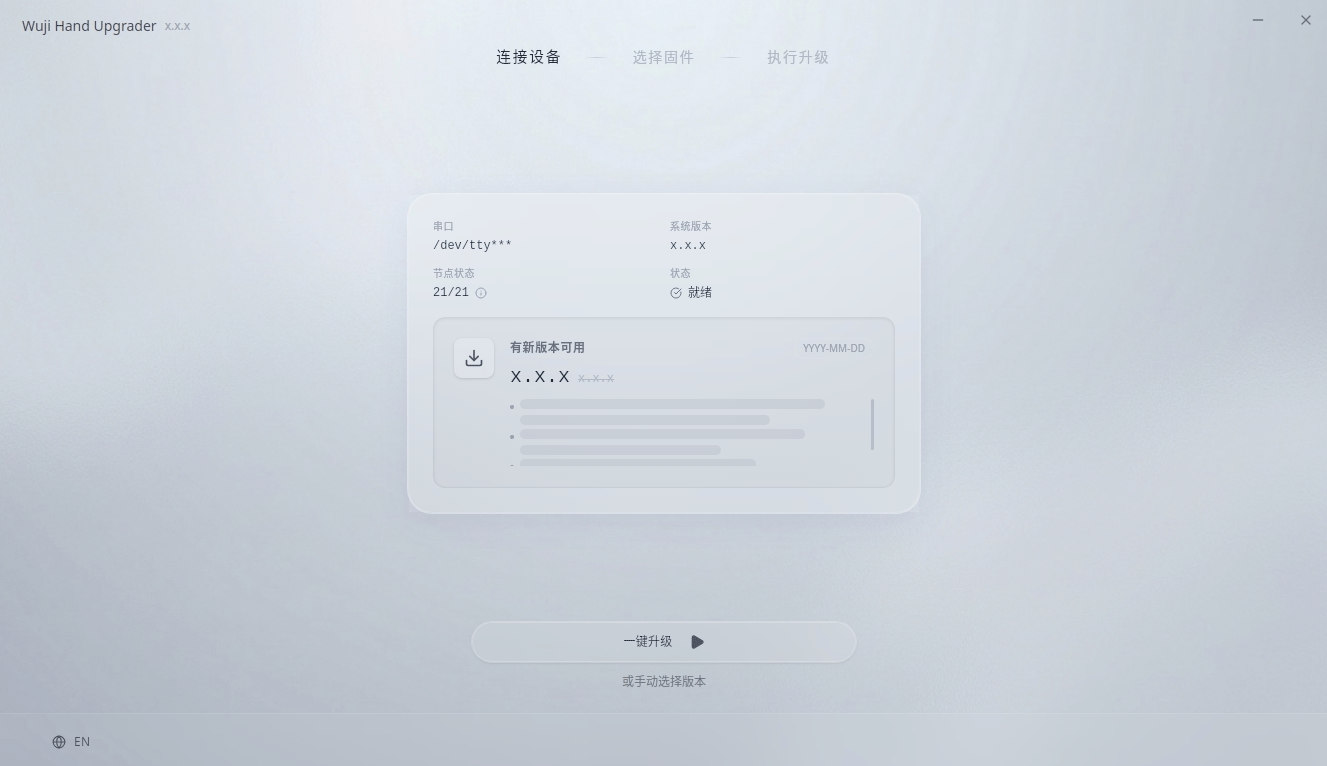 确认设备信息显示正常后,即可继续执行固件升级。
This documentation is built and hosted on [Mintlify](https://mintlify.com), a developer documentation platform.
确认设备信息显示正常后,即可继续执行固件升级。
This documentation is built and hosted on [Mintlify](https://mintlify.com), a developer documentation platform.